Identity Sources
An identity source is a directory or identity provider that AccessHive connects to for managing users, groups, and authentication. It is where your agency’s user accounts live – AccessHive syncs with that source to keep everything in one place.
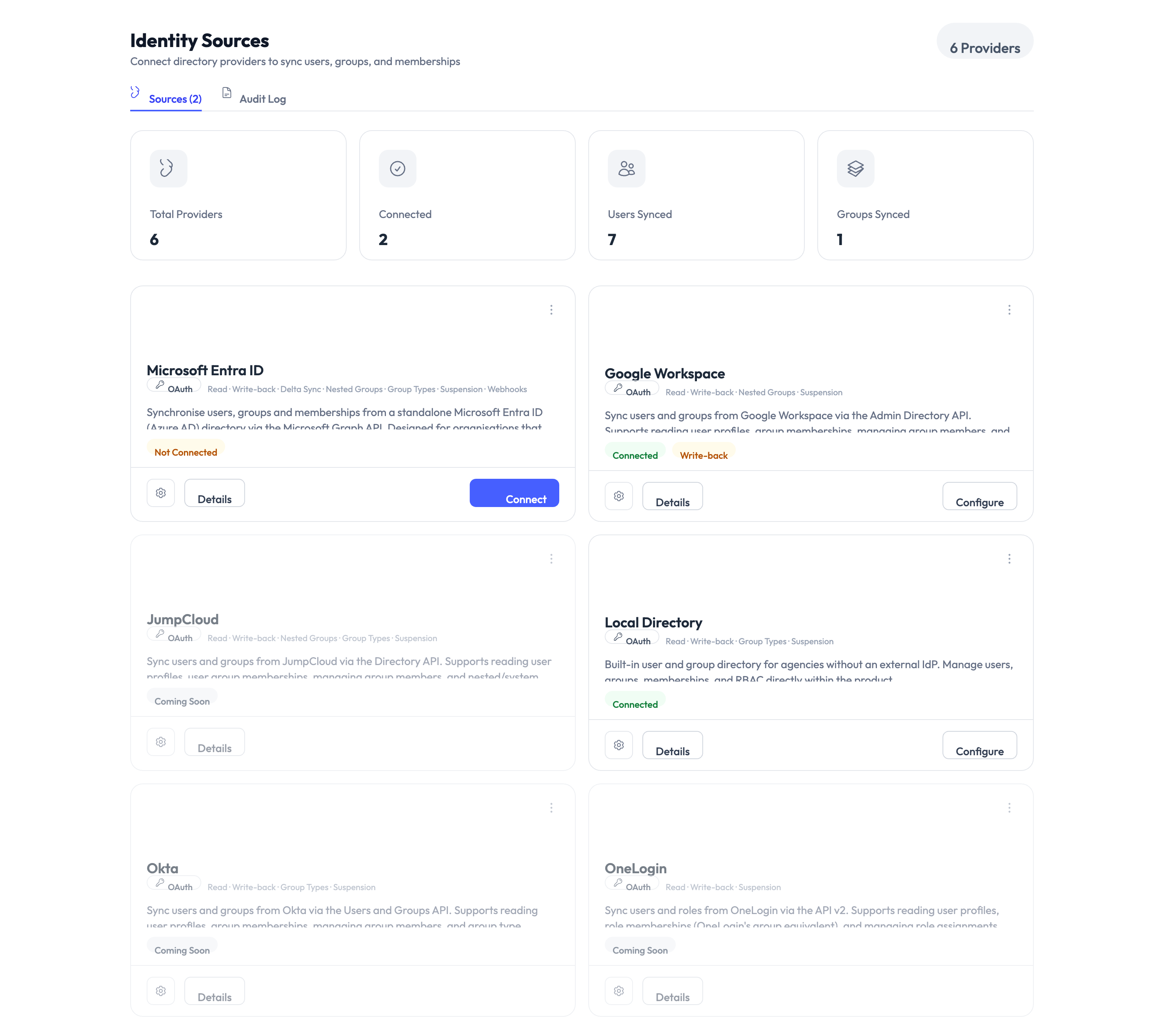
How identity sources work
When you connect an identity source, AccessHive pulls in your users and groups on a regular schedule. Changes in the source directory (new hires, role changes, departures) flow into AccessHive automatically. This means you manage users in one place – your directory – and AccessHive stays in sync.
Identity sources also power single sign-on (SSO), so your team members can log into AccessHive with their existing credentials instead of maintaining a separate password.
Types of identity sources
AccessHive supports three identity sources. Most agencies use one as their primary source.
Local Directory
The built-in directory that comes with every AccessHive account. It works without any external service and is a good starting point for small teams or agencies that do not use Google Workspace (GWS) or Microsoft Entra ID.
What you can do:
- Create users with an email, name, and role
- Import users in bulk from a CSV file
- Organize users into groups for role assignment
- Send email invitations and track their status (pending, accepted, expired)
- Reset passwords and two-factor authentication for individual users
- Activate or deactivate accounts
Google Workspace
The recommended identity source for agencies that run on Google. Connecting GWS gives you full directory sync, user provisioning, and SSO through a single integration.
What you can do:
- Sync users and groups automatically from your GWS directory
- Create domain users directly from AccessHive (used for managed Shared Credentials)
- Manage organizational units
- Enable SSO so team members log in with their Google account
- Pull in audit logs from the Google Admin console
See the Google Workspace Setup guide for step-by-step connection instructions.
Microsoft Entra ID
For agencies that use Microsoft 365, Entra ID (formerly Azure Active Directory) provides user and group synchronization.
What you can do:
- Sync users (name, email, department, job title) and groups (including dynamic groups)
- Pull in audit logs for compliance reporting
- Monitor connection health and sync status
Setup overview:
- Register an application – Create an app registration in the Azure Portal.
- Configure in AccessHive – Enter the tenant ID and application credentials in Settings > Identity Sources > Microsoft Entra ID.
- Grant permissions – The app needs directory read and audit log read permissions in Azure.
- Authorize the connection – Complete the authorization flow to link the two systems.
Comparison
| Feature | Local Directory | Google Workspace | Microsoft Entra ID |
|---|---|---|---|
| User sync | Manual or CSV import | Automatic | Automatic |
| Group sync | Manual | Automatic | Automatic (including dynamic groups) |
| SSO | Not available | Yes | Planned |
| User provisioning | Manual creation only | Create domain users from AccessHive | Not available |
| Audit log sync | Not available | Yes | Yes |
| Best for | Small teams, no external directory | Google-based agencies | Microsoft-based agencies |
If your team already uses Google Workspace, connect it as your primary identity source – you get automatic sync, SSO, and the ability to create managed credentials. If you use Microsoft 365, connect Entra ID for directory sync. Use the Local Directory if you do not have either, or as a supplement for users who are not in your external directory.
Role mapping from directory groups
Once an identity source is connected, you can map directory groups to platform roles for automatic access assignment. This is part of Role-Based Access Control (RBAC).
| Component | What it means |
|---|---|
| Source group | A group from any identity source (Local, GWS, or Entra ID) |
| Target role | The platform role the group members will receive |
| Target platform | Which platform the role applies to |
| Conditions | Optional rules like time-based limits or client-scoped restrictions |
When you add a user to the source group, they automatically receive the mapped role. Removing them from the group revokes the role.
Use the mapping preview to see which users would be affected before activating a new role mapping. This prevents unintended access grants.
Related pages
- Connect Google Workspace step by step – See Google Workspace Setup.
- Understand roles and approval policies – See Governance.
- Create identities that use your identity source – See Creating Identities.
- Configure agency settings – See Settings.