Approval Policies
This guide walks you through configuring approval policies in AccessHive. Approval policies control who must approve access requests and shared credential checkouts, and under what conditions those approvals are required.
Time to complete: About 5 minutes.
- You need the Admin or Owner role to edit approval policies.
- Familiarize yourself with how access requests flow through the system. See Access Requests.
- If you use approval workflows, set those up first. See Workflows.
Navigate to Settings > Approval Policies to open the configuration page.
How approval policies work
Every time a team member requests access or checks out a shared credential, AccessHive evaluates the request against your approval policies. The system decides whether the request needs manual approval, can be auto-approved, or should be escalated to a senior approver.
Two settings drive this behavior:
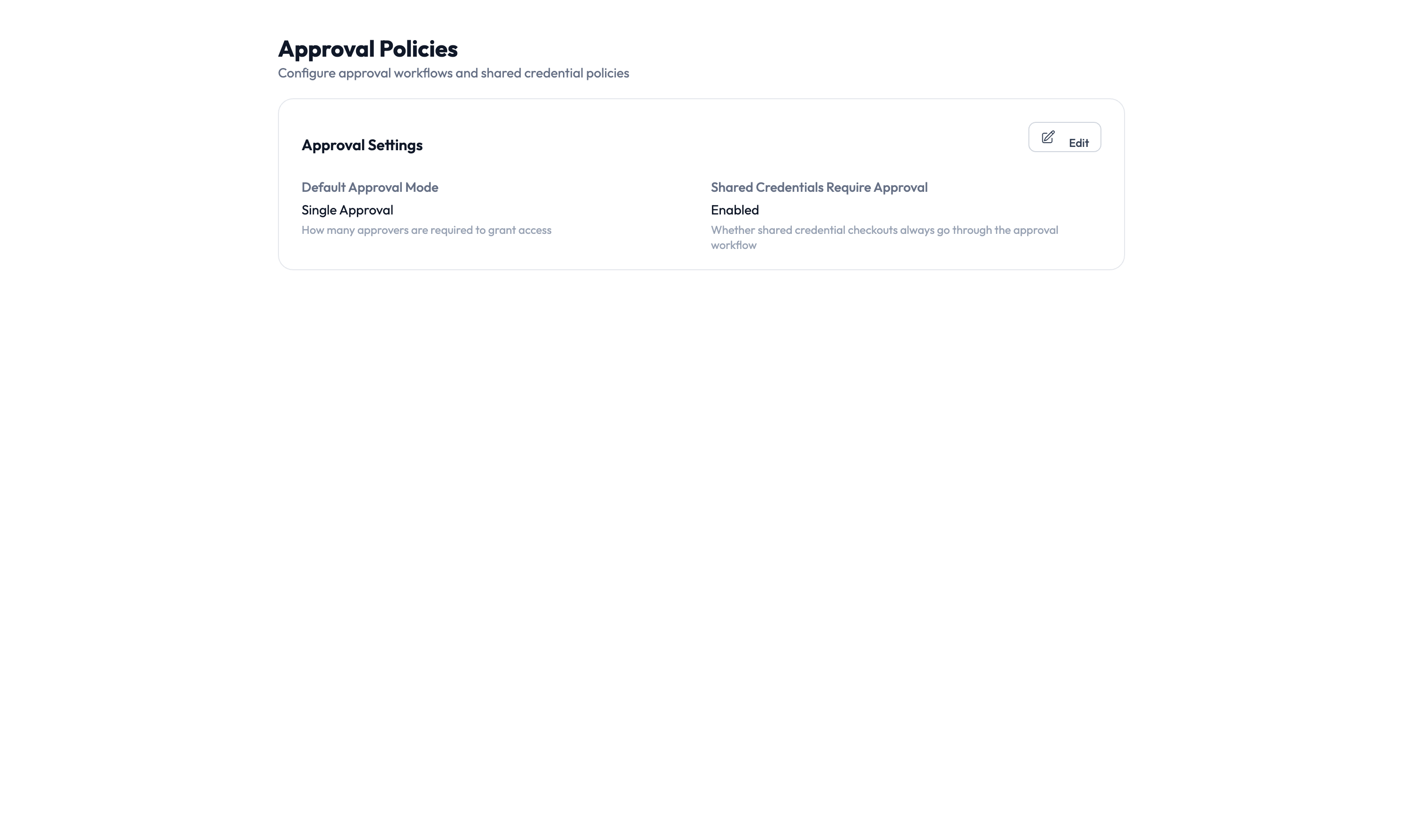
- Default Approval Mode – Determines whether requests require approval by default.
- Shared Credentials Require Approval – A separate toggle that controls whether Privileged Access Management (PAM) checkouts require approval independently of the default mode.
Choosing an approval mode
| If you need to… | Choose | What happens |
|---|---|---|
| Require a human to review every request | Single Approval | Each request goes to the approval queue and waits for one approver |
| Allow low-risk requests to skip approval | Risk-Based Approval | The system auto-approves low-risk requests and routes higher-risk ones to approvers |
| Let all requests through without approval | No Approval | Requests are granted immediately with no review step |
Single Approval is the safest default for most agencies. You can switch to Risk-Based Approval later once you have tuned your risk levels and are comfortable with the auto-approval thresholds.
Configuring approval settings
Step 1 – Open the approval settings card
On the Approval Policies page, click the Edit button on the Approval Settings card.
Step 2 – Set the default approval mode
Choose one of the three modes from the Default Approval Mode dropdown: Single Approval, Risk-Based Approval, or No Approval.
Step 3 – Configure shared credential approvals
Toggle Shared Credentials Require Approval on or off. When enabled, every PAM checkout goes through the approval queue regardless of the default approval mode.
If you turn this off, team members can check out credentials without any review. Only disable this if your agency has other controls in place, such as time-limited sessions and post-checkout audit reviews.
Step 4 – Save your changes
Click Save to apply the new settings. Changes take effect immediately for all new requests. Existing pending requests continue under the policy that was active when they were submitted.
Risk levels and auto-approval
When using Risk-Based Approval mode, the system assigns a risk level to each request based on the sensitivity of the permissions involved.
| Risk level | Default behavior |
|---|---|
| Low | Auto-approved (no human review) |
| Medium | One approver required |
| High | Senior approver or manager required |
| Critical | Multiple approvers required |
You can customize these thresholds in your governance settings. For a full explanation of risk levels and how they are calculated, see Governance.
Escalation
If an approval request goes unanswered for a configurable period, the system escalates it:
- The original approver receives a reminder notification.
- If still unanswered, the request moves to the next approver in the chain.
- If no one responds within the final escalation window, the request expires and the requester is notified.
Configure escalation time limits under Settings > Governance to match your agency’s response expectations.
Something went wrong?
Requests are being auto-approved when they should not be
Check that your Default Approval Mode is set to Single Approval or Risk-Based Approval – not No Approval. If using Risk-Based Approval, verify that the risk level thresholds are configured correctly in your governance settings. See Troubleshooting.
Shared credential checkouts skip the approval queue
Verify that Shared Credentials Require Approval is toggled on in the Approval Settings card. If it was recently changed, the new setting only applies to new checkout requests – any checkouts already in progress are unaffected. See Troubleshooting.
Approver did not receive a notification
Check that the approver has a notification channel configured under Settings > Notifications. Also verify that the approver is assigned to the correct approver group for the platform or client involved. See Troubleshooting.
For more troubleshooting scenarios, see the full Troubleshooting Guide.
What’s next?
- Set up approval workflows – Define multi-step approval chains with conditions. See Workflows.
- Configure PAM sessions – Control checkout time limits and credential rotation. See PAM Sessions.
- Review the audit trail – Track who approved or rejected requests. See Audit Trail.
- Manage access requests – See the full request lifecycle from submission to provisioning. See Access Requests.