Plan and Billing
This guide walks you through viewing your current plan, tracking usage, and managing your AccessHive subscription. Use this page to understand your plan limits, compare available tiers, and upgrade or downgrade as your agency grows.
Time to complete: About 3 minutes.
- You need the Owner role to change billing settings. Other roles can view the page but cannot make changes.
- Have your billing contact information ready if you plan to update payment details.
Navigate to Settings > Plan & Billing to get started.
Understanding your current plan
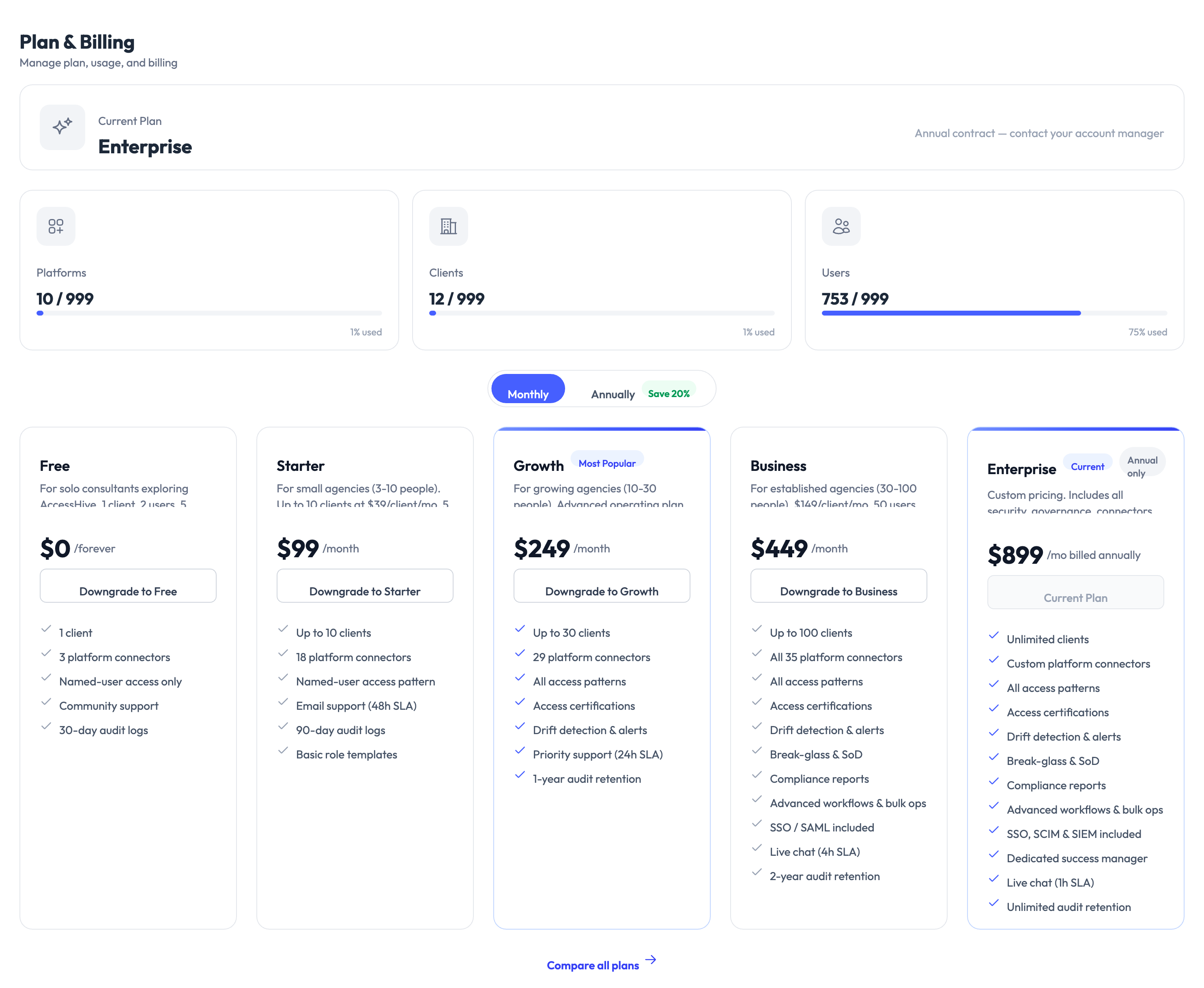
The top of the page shows your active plan name and a link to manage your annual contract or contact your account manager.
Below the plan name, three usage cards show how much of your plan’s capacity you are using:
| Metric | What it shows |
|---|---|
| Platforms | Number of connected platforms out of your plan limit |
| Clients | Number of active client accounts out of your plan limit |
| Users | Number of team members out of your plan limit |
Each card includes a progress bar so you can see at a glance how close you are to a limit.
When a usage metric approaches its plan limit, consider upgrading before you hit the cap. Reaching a limit prevents you from adding more of that resource until you upgrade.
Comparing available plans
Below the usage cards, the page displays all available plan tiers side by side. Use this section to compare features and pricing before making a change.
Plan tiers
| Plan | Best for | Key features |
|---|---|---|
| Free | Solo consultants exploring AccessHive | 1 client, 3 platform connectors, community support, 30-day audit logs |
| Starter | Small agencies (2-10 people) | Up to 10 clients, 10 platform connectors, email support, 90-day audit logs |
| Growth | Growing agencies (10-50) | Up to 50 clients, 25 platform connectors, priority support, 1-year audit retention |
| Business | Established agencies (50-200) | Up to 100 clients, all platform connectors, advanced workflows, dedicated access manager |
| Enterprise | Large agencies (200+) | Custom pricing, unlimited audit retention, live chat support, custom platform connectors |
Toggle between Monthly and Annually billing at the top of the plan comparison. Annual billing includes a discount.
Click Compare all plans at the bottom of the page for a detailed feature-by-feature breakdown.
Changing your plan
Upgrading
Click the Upgrade or Downgrade button shown on the plan tier you want to switch to. A confirmation screen shows what changes with the new plan, including any pricing difference.
If you downgrade to a plan with lower limits and your current usage exceeds those limits, you need to reduce your connected platforms, clients, or users before the downgrade takes effect.
Managing payment details
For plans on monthly billing, click Manage Billing to update your payment method or billing address. For annual contracts, the page shows a link to contact your account manager.
Viewing invoices
Past invoices are available through the billing portal. Click Manage Billing and navigate to the invoice history to download receipts for your records.
Something went wrong?
Cannot change the plan — button is greyed out
Cause: Only the Owner role can modify billing settings. Your current role does not have permission.
Resolution: Ask your agency owner to make the change, or have them upgrade your role to Owner. See Users and Roles.
Usage shows higher numbers than expected
Cause: Deactivated platforms or clients may still count toward your usage if they have not been fully removed.
Resolution: Go to the relevant settings page and remove any unused platforms or clients. Usage counts update immediately. See Troubleshooting.
Annual contract link does not work
Cause: Your account may not be on an annual contract, or the link may require your account manager to activate it.
Resolution: Contact AccessHive support or your account manager directly. See Troubleshooting.
What’s next?
- Invite your team – Add users now that your plan supports them. See Users and Roles.
- Connect platforms – Use your plan’s platform capacity. See Platform Connections.
- Set up clients – Start managing client accounts. See Client Management.
- Review all settings – Explore the full settings area. See Settings.