Role Templates
This guide walks you through creating and using role templates in AccessHive. A role template bundles related platform permissions into a named pattern – like “Media Buyer” or “Analytics Analyst” – so you can apply consistent access across clients without configuring each permission individually.
Time to complete: About 5 minutes to create your first template.
- At least one platform must be connected and in Operational state. See Platform Connections.
- You need the Admin or Agency Owner role to create and manage templates.
- Familiarize yourself with your agency’s common job functions so you can map them to templates.
Why use role templates?
Without templates, you assign individual permissions every time you onboard a new client – selecting Google Ads access, Meta access, analytics access, and so on, one at a time. Templates let you define that bundle once and reuse it.
| If you need to… | Use a template for… | Example |
|---|---|---|
| Give a team member standard ad-buying access across platforms | Media Buyer | Google Ads Editor + Meta Ads Manager + DV360 Trader |
| Set up read-only analytics access | Analytics Analyst | GA4 Viewer + Google Search Console Viewer |
| Provision full ecommerce management access | Ecommerce Manager | Shopify Admin + BigCommerce Manager + Klaviyo Editor |
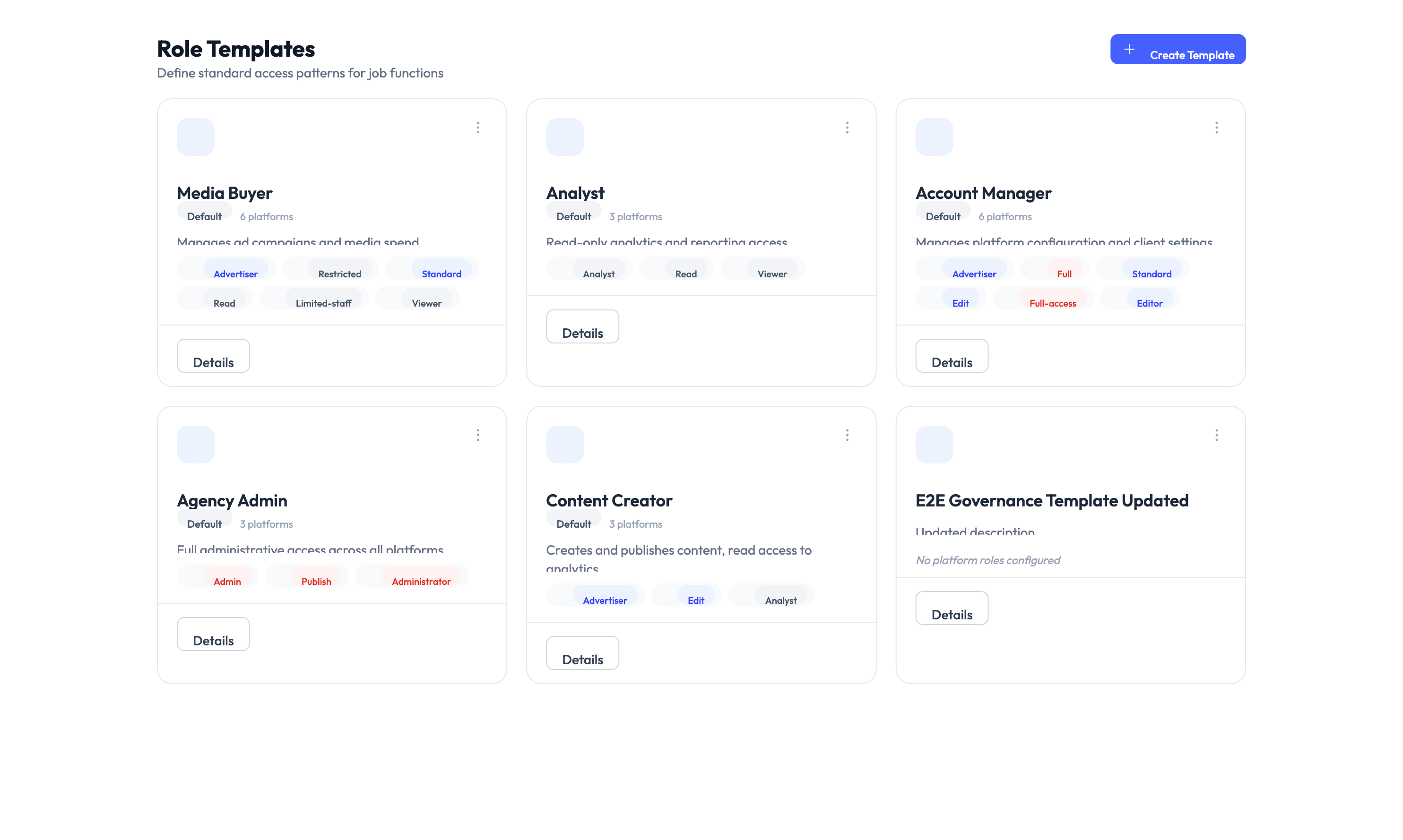
Creating a role template
Step 1 – Open the role templates page
Navigate to Settings > Role Templates and click New Template.
Step 2 – Enter a name and description
Give the template a clear name that matches the job function it represents (for example, “Media Buyer” or “Analytics Analyst”). Add a description that explains when this template should be used.
Step 3 – Select job roles
Choose which job functions this template applies to. This helps AccessHive suggest the right template during client onboarding.
Step 4 – Add access items
Select the specific platform permissions to include. Each access item corresponds to a role or permission level on a connected platform (for example, “Google Ads Editor” or “Meta Ads Manager”).
Step 5 – Set the risk level
Assign an overall risk level: low, medium, high, or critical. Higher risk levels may trigger stricter approval requirements when the template is requested.
Step 6 – Configure default approval requirements
Set whether requests using this template need approval, and who should approve them. These defaults apply when team members or clients request access through this template.
Step 7 – Review and save
Review your selections and click Save. The template is now available for use across your agency.
Using templates
Once created, templates can be applied in several ways:
- Client onboarding – When adding a new client, apply a template to quickly provision standard access for that client’s team. This is the most common use.
- Access requests – Team members or client users can request access by selecting a template instead of picking individual permissions. See Access Requests.
- Governance and auditing – Templates define the expected access baseline. You can compare actual access against the template to spot drift.
Template suggestions
AccessHive can recommend templates based on your agency’s data. Navigate to Role Templates > Get Suggestions to see recommendations based on:
- Client industry and which platforms they use
- Common access patterns already in use across your agency
- Job role descriptions from your team
Defining templates for your most common job functions before onboarding clients saves significant time. Start with 3-5 templates covering your agency’s core roles, then refine as you go.
Template versioning
Templates track changes over time:
- Each edit creates a new version of the template.
- Existing assignments keep using the version they were created with.
- New assignments always use the latest version.
- You can compare versions to see what changed between edits.
Template components reference
| Component | What it controls |
|---|---|
| Name | A friendly label for the template (shown in the UI) |
| Description | Explains what the role does and when to use it |
| Job Roles | Which job functions this template applies to |
| Access Items | The specific platform permissions included in the bundle |
| Risk Level | Overall risk assessment (low, medium, high, or critical) |
| Approval Policy | Default approval requirements when this template is requested |
Something went wrong?
Template does not show the platform I need
The platform may not be connected or may not be in Operational state. Go to Settings > Platforms and verify the platform is connected and showing as Operational. See Platform Connections.
Template changes are not affecting existing assignments
This is expected. Existing assignments use the version of the template they were created with. To apply the latest version, create a new assignment using the updated template. See Troubleshooting.
Access request using a template was denied
The template’s risk level or approval policy may require a higher-level approver. Check the template’s approval requirements under Settings > Role Templates and verify that the right approver reviewed the request. See Access Requests.
For more troubleshooting scenarios, see the full Troubleshooting Guide.
What’s next?
- Handle access requests – Review and approve requests that use your templates. See Access Requests.
- Onboard a new client – Apply templates during client setup. See Client Management.
- Create identities – Provision the credentials that templates grant access to. See Creating Identities.
- Set up PAM sessions – Configure checkout governance for credentials provisioned through templates. See PAM Sessions.