Emergency Access
This guide walks you through configuring emergency access (also called break-glass access) in AccessHive. Emergency access allows authorized users to bypass the normal approval workflow when urgent situations require immediate credential access.
Time to complete: About 3 minutes.
- You need the Admin or Owner role to configure emergency access settings.
- Approval policies should already be configured. See Approval Policies.
- Decide which roles in your agency should be eligible for emergency access before you begin.
Navigate to Settings > Emergency Access to open the configuration page.
When to use emergency access
Emergency access is designed for situations where waiting for the normal approval process would cause business harm – for example, a compromised account that needs immediate password rotation, or a campaign launch that requires urgent credential access outside business hours.
Every emergency access event is logged in the audit trail and flagged for review. Use this feature only for genuine emergencies – not as a shortcut around your approval policies.
Configuring emergency access
Step 1 – Open the Break-Glass / Emergency Access card
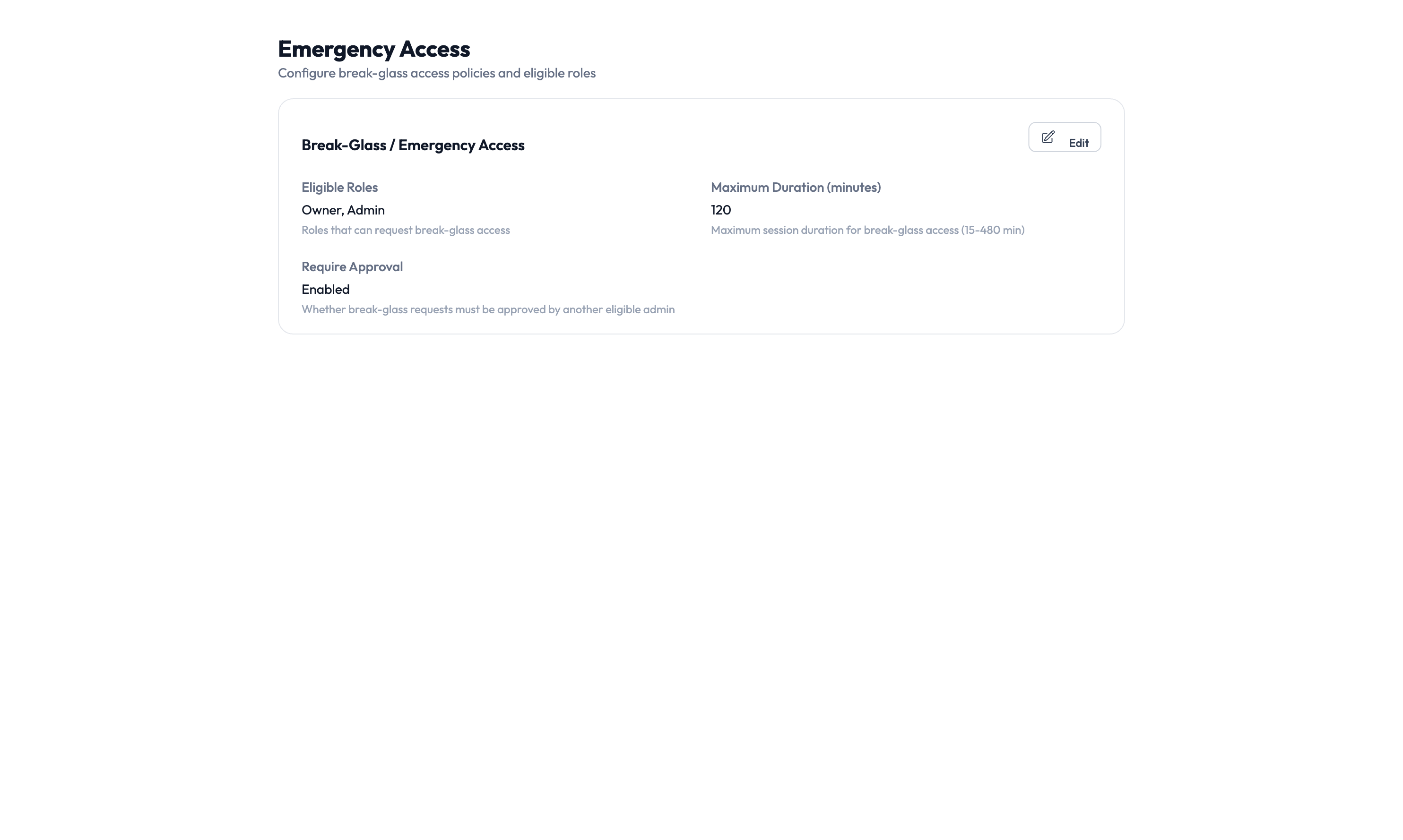
On the Emergency Access page, click the Edit button on the settings card.
Step 2 – Set eligible roles
Choose which roles can initiate an emergency access session. The screenshot shows Owner and Admin as eligible roles. Keep this list short – only senior personnel who understand the audit implications should have this capability.
Step 3 – Set the maximum duration
Configure how long an emergency access session can last. This is the maximum time window before the session automatically expires and access is revoked. The default is typically measured in minutes to limit exposure.
Step 4 – Configure approval requirements
Toggle Require Approval on or off:
- Enabled – Even emergency access requests go through an expedited approval step, but the approval window is much shorter than the standard process.
- Disabled – Emergency access is granted immediately to eligible users with no approval step.
Even a fast-tracked approval adds an audit checkpoint. If your agency has approvers available around the clock, keep this enabled to maintain a two-person verification on every emergency event.
Step 5 – Save your changes
Click Save to apply the settings. Changes take effect immediately.
Using emergency access
When an eligible user needs emergency access:
- Open the identity or credential that requires urgent access.
- Select the Emergency Access option instead of the standard checkout.
- Provide a justification describing why this is an emergency.
- If approval is required, the request is routed to an available approver with an urgent flag.
- Once granted, the user has access for the configured maximum duration.
- The session ends automatically when the timer expires, or the user can end it early.
Every step of this process is recorded in the Audit Trail with an emergency flag for easy filtering during reviews.
Reviewing emergency access events
After any emergency access event, review it promptly:
- Navigate to Audit Trail and filter by Emergency Access events.
- Verify the justification matches a genuine emergency.
- Check that the session duration was appropriate.
- Follow up with the user if any actions during the session need further review.
Set a recurring reminder to review all emergency access events weekly. This ensures no emergency session goes unexamined and helps you spot patterns that might indicate misuse.
Something went wrong?
The Emergency Access option is not available
Your role may not be on the eligible roles list. Ask your agency owner to verify which roles are allowed under Settings > Emergency Access. Only the roles listed in the Eligible Roles field can initiate emergency sessions. See Troubleshooting.
Emergency access session expired before I finished
The maximum duration is a hard limit. If you need more time, start a new emergency access session with an updated justification. Consider asking your admin to increase the maximum duration if your agency’s emergencies routinely require longer windows. See Troubleshooting.
Emergency access request was not approved in time
If approval is required, the request follows an expedited approval path – but if no approver is available, the request can still expire. Consider disabling the approval requirement for emergency access if your agency does not have 24/7 approver coverage. See Troubleshooting.
For more troubleshooting scenarios, see the full Troubleshooting Guide.
What’s next?
- Configure approval policies – Set the rules that emergency access bypasses. See Approval Policies.
- Set up PAM sessions – Configure standard checkout governance for non-emergency access. See PAM Sessions.
- Review the audit trail – Monitor emergency access events and their justifications. See Audit Trail.
- Manage credentials – Rotate passwords after emergency sessions. See Managing Credentials.