Managing Credentials
This guide covers how to view, reveal, and rotate the credentials stored inside your identities. Whether you need to check a password, update an API key, or understand how automatic rotation works, this page has you covered.
Time to complete: About 3 minutes (reading); individual actions take under a minute.
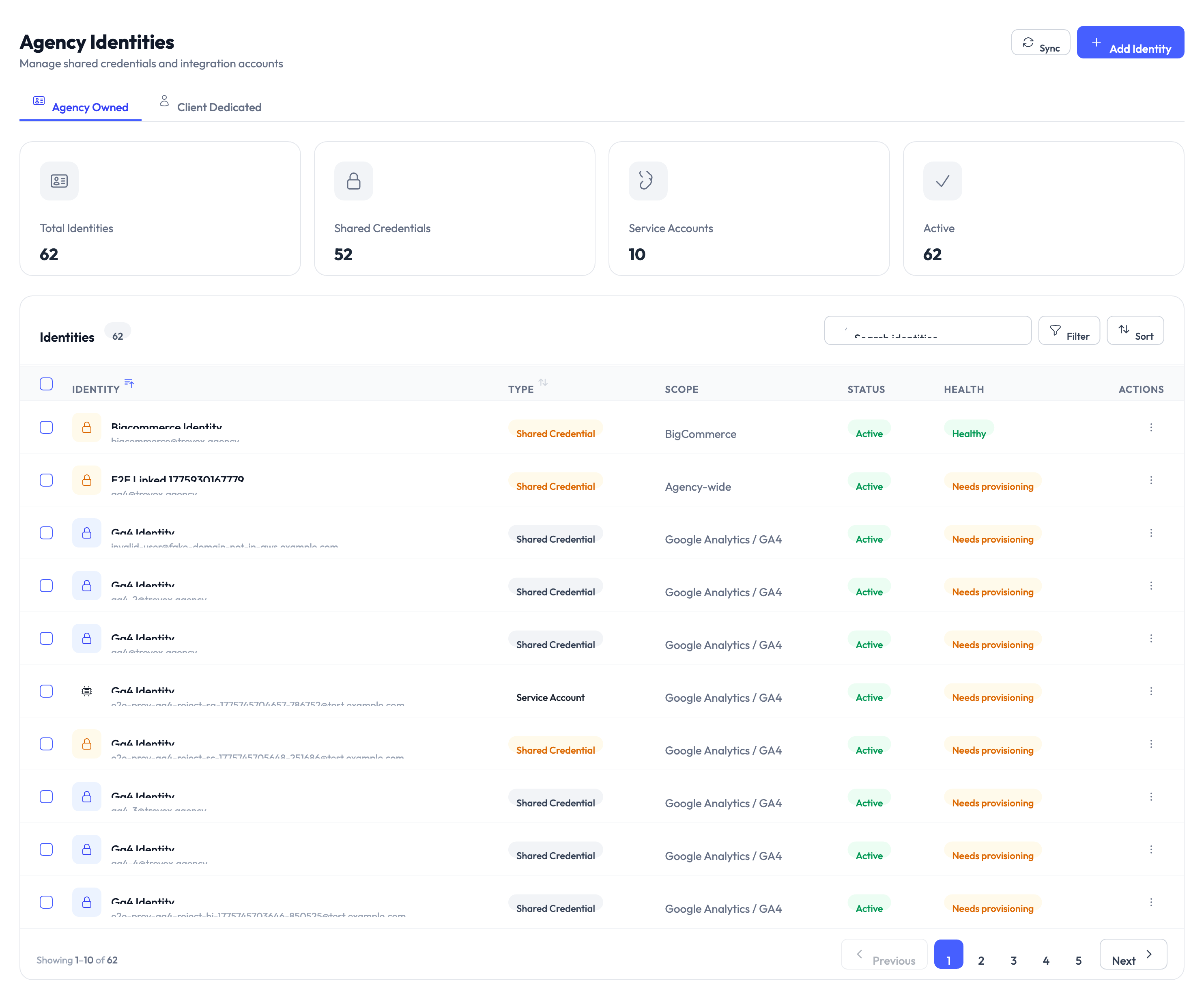
- You need at least one identity already created. See Creating Identities.
- To reveal credentials, you need the Agency Owner role.
- To use automatic password rotation, your Google Workspace (GWS) identity source must be connected. See Google Workspace Setup.
What credentials does each identity type store?
Each identity type stores a different set of fields. Here is what you can expect to see when you reveal credentials.
| Identity type | Fields stored |
|---|---|
| Shared Credential (external) | Username + password |
| Shared Credential (managed) | Username + password (set automatically by Google Workspace) |
| Service Account | Service account email + JSON key file |
| API Key | Key label + API key value |
| OAuth App | Client ID + client secret |
Revealing credentials
Step 1 — Open the identity detail page
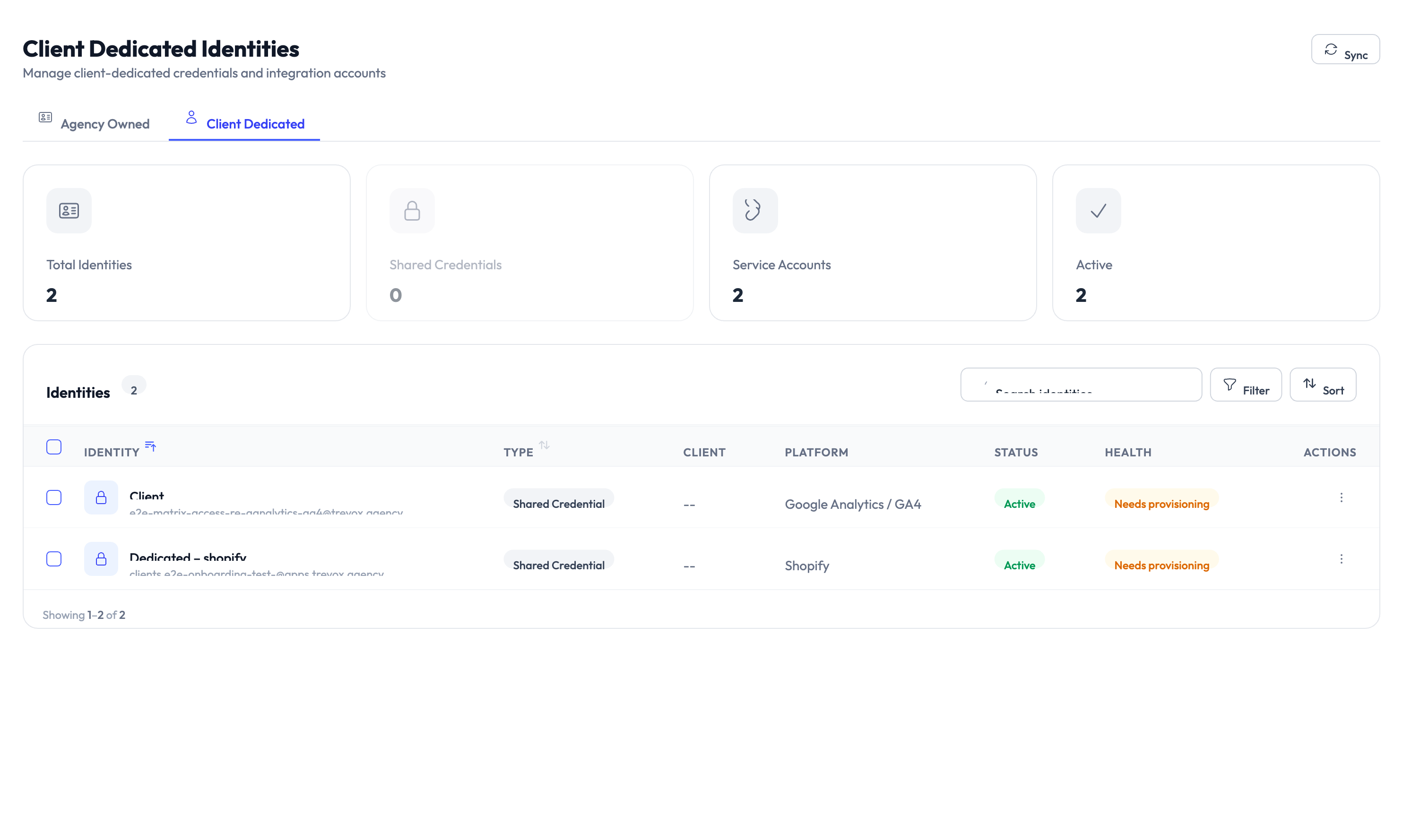
Navigate to Identities, then click the identity whose credentials you want to see. Select the Credentials tab.
Step 2 — Click Reveal Credentials
Click Reveal Credentials. The system decrypts and displays the stored values with a 30-second countdown timer.
Step 3 — Copy what you need before the timer expires
After 30 seconds the credentials are automatically cleared from the screen. If you need them again, click Reveal Credentials once more.
Each time you reveal credentials, the action is logged in the audit trail with your email, the timestamp, and the identity involved. Only agency owners have permission to reveal credentials.
Rotating passwords
Password rotation replaces an existing password with a new one so that previously exposed credentials no longer work.
Automatic rotation (managed Shared Credentials only)
For Shared Credential identities managed through Google Workspace, rotation happens automatically:
- A team member checks out the credential through Privileged Access Management (PAM).
- When the team member checks the credential back in, the system sends a rotation request to Google Workspace.
- Google Workspace resets the password on the domain user.
- The new password replaces the old one in the credential vault.
No manual steps are needed. The next person who checks out the credential receives the new password.
Manual rotation (all other identity types)
For external Shared Credentials, Service Accounts, API Keys, and OAuth Apps, update the credentials yourself:
- Navigate to the identity detail page.
- Click Edit Identity.
- Enter the new credential values and save.
Automatic password rotation requires a Google Workspace-managed Shared Credential. All other identity types must be updated manually through the edit flow.
Checkout governance settings
Shared Credential and Service Account identities support checkout governance through PAM. These settings control how team members access the credentials.
| Setting | Default | What it does |
|---|---|---|
| Max checkout time | 60 minutes | How long someone can hold the credentials before they are automatically returned |
| Approval required | Enabled | Whether a manager must approve each checkout request |
| Confirmation required | Enabled | Whether the user must confirm they have finished before the session ends |
These defaults come from your agency settings and can be adjusted on each identity’s detail page under the Governance tab.
API Key and OAuth App identities do not go through PAM checkout. Their credentials are accessed directly through the reveal flow described above.
Something went wrong?
Reveal Credentials button is disabled
Your account may not have the Agency Owner role, which is required for credential reveals. Ask your agency owner to check your role under Settings > Team Members. See Troubleshooting.
Password did not rotate after check-in
Automatic rotation only applies to managed Shared Credentials backed by Google Workspace. Verify that the identity’s credential mode is set to “Managed” on the identity detail page. If it is managed and rotation still did not happen, check that your GWS connection is active under Settings > Identity Sources. See Google Workspace Setup.
Credentials disappear before I can copy them
The 30-second reveal timer is a security measure. Click Reveal Credentials again to restart the timer. If you need more time, copy the values to your clipboard immediately after they appear. See Troubleshooting.
For more troubleshooting scenarios, see the full Troubleshooting Guide.
What’s next?
- Set up PAM sessions – Configure checkout policies, approval workflows, and session time limits. See PAM Sessions.
- Create new identities – Add more credentials to your agency’s vault. See Creating Identities.
- Review the audit trail – Track who revealed, rotated, or checked out credentials. See Audit Trail.
- Assign identities to clients – Link identities to specific client accounts. See Client Management.