Troubleshooting
This page covers common issues you may encounter in AccessHive and how to resolve them. Each item describes the symptom, explains the cause, and gives you steps to fix it.
- Most troubleshooting steps require the Admin or Owner role.
- If you are a team member without admin access, contact your agency admin for help.
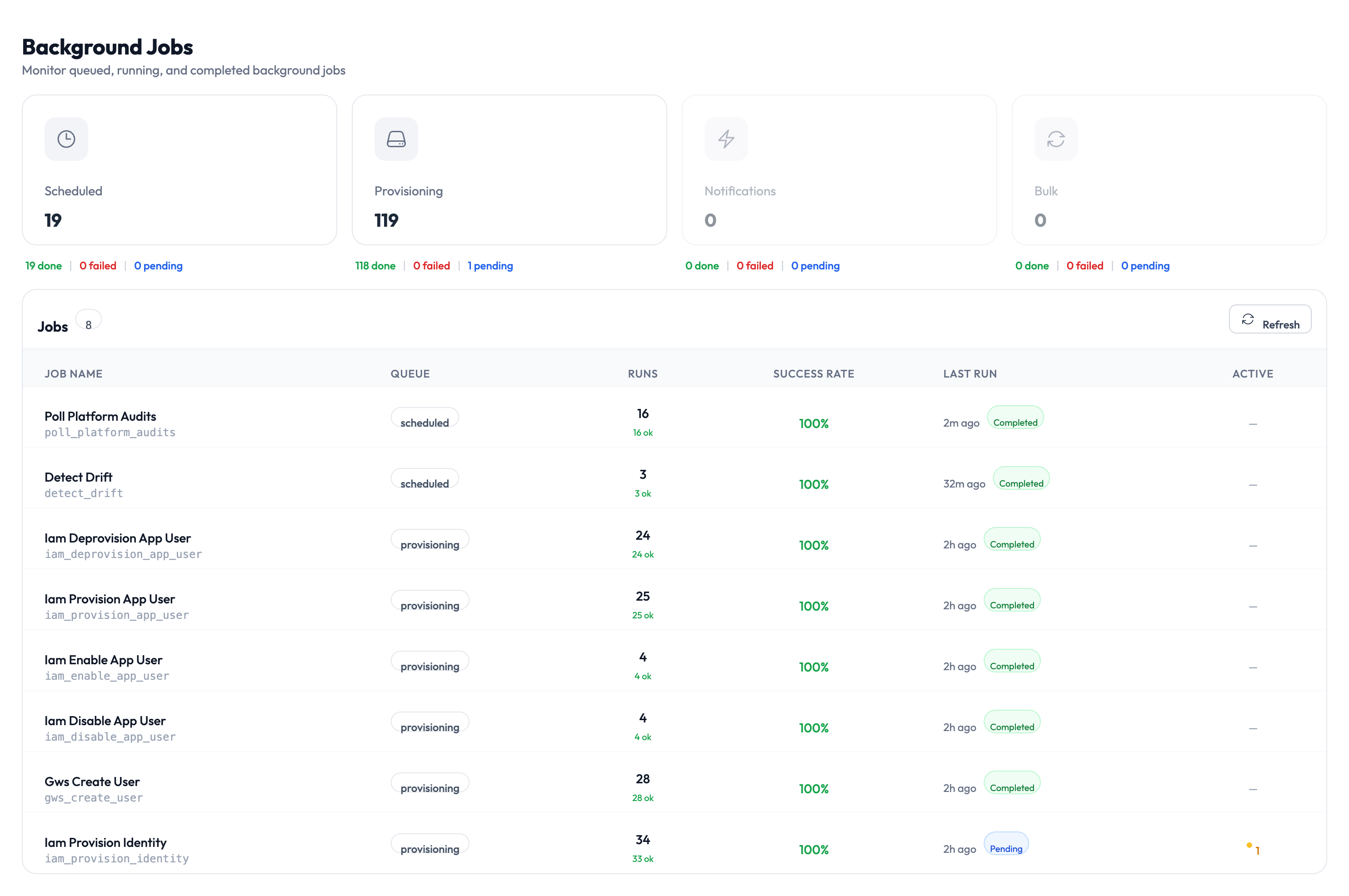
Identity issues
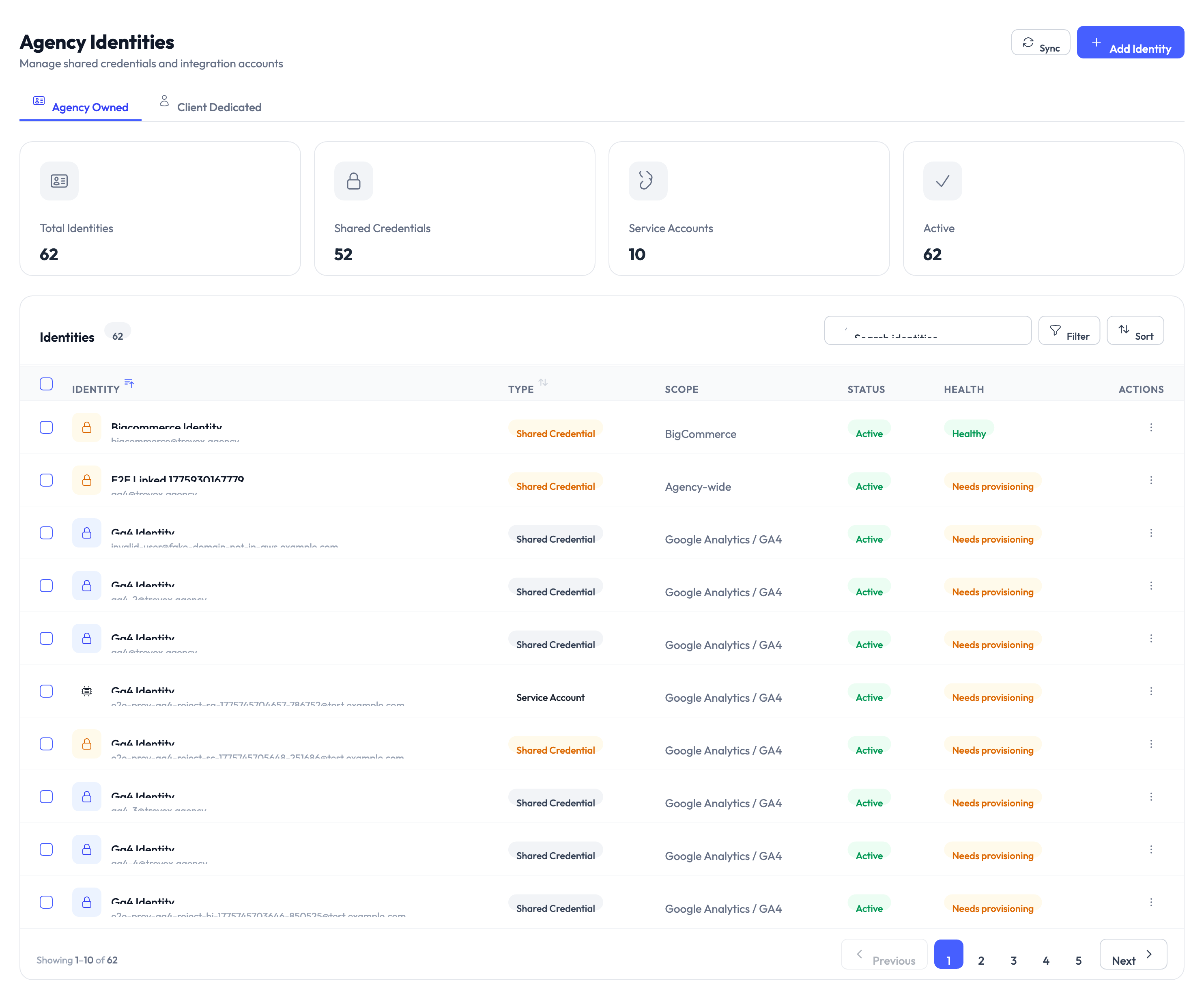
Identity is stuck at Pending
Cause: The system is still setting up the identity in the background. This usually finishes within 15 seconds, but it can take longer if a connected service is slow to respond.
Resolution:
- Open the identity detail page and check the provider status section to see which service is still pending.
- If Google Workspace is pending, go to Settings > Identity Sources > Google Workspace and verify the connection shows “Connected” (not “Disconnected”).
- If the identity provider is pending, check its health status in Settings > Identity Sources.
- Click the Retry Provisioning button if the identity has been pending for more than a minute.
See Creating Identities for the full setup walkthrough.
Identity wizard does not show my platform
Cause: The platform may not support the identity type you selected, or the platform is not yet in an operational state.
Resolution:
- Go to Settings > Platforms and verify the platform shows “Operational” status.
- Check that the platform supports the identity type you want to create. API Key and OAuth App identities are always tied to a single platform and will not appear when you select agency-wide scope.
See Platform Connections for how to connect and verify platforms.
Managed credential option is greyed out
Cause: Your Google Workspace identity source is not connected, or it is not set up for provisioning.
Resolution:
Go to Settings > Identity Sources > Google Workspace and verify the connection is active. If it shows “Disconnected”, reconnect using an account with super-admin permissions.
See Google Workspace Setup for connection instructions.
Error: ‘Email domain is not a verified Google Workspace domain’
Cause: When creating a managed Shared Credential, the username must use one of your agency’s verified Google Workspace domains.
Resolution:
Use the domain dropdown in the wizard to select one of your verified domains instead of typing a custom domain. If the domain you need is not listed, verify it in your Google Workspace admin console first.
See Creating Identities for the credential step details.
Google Workspace connection issues
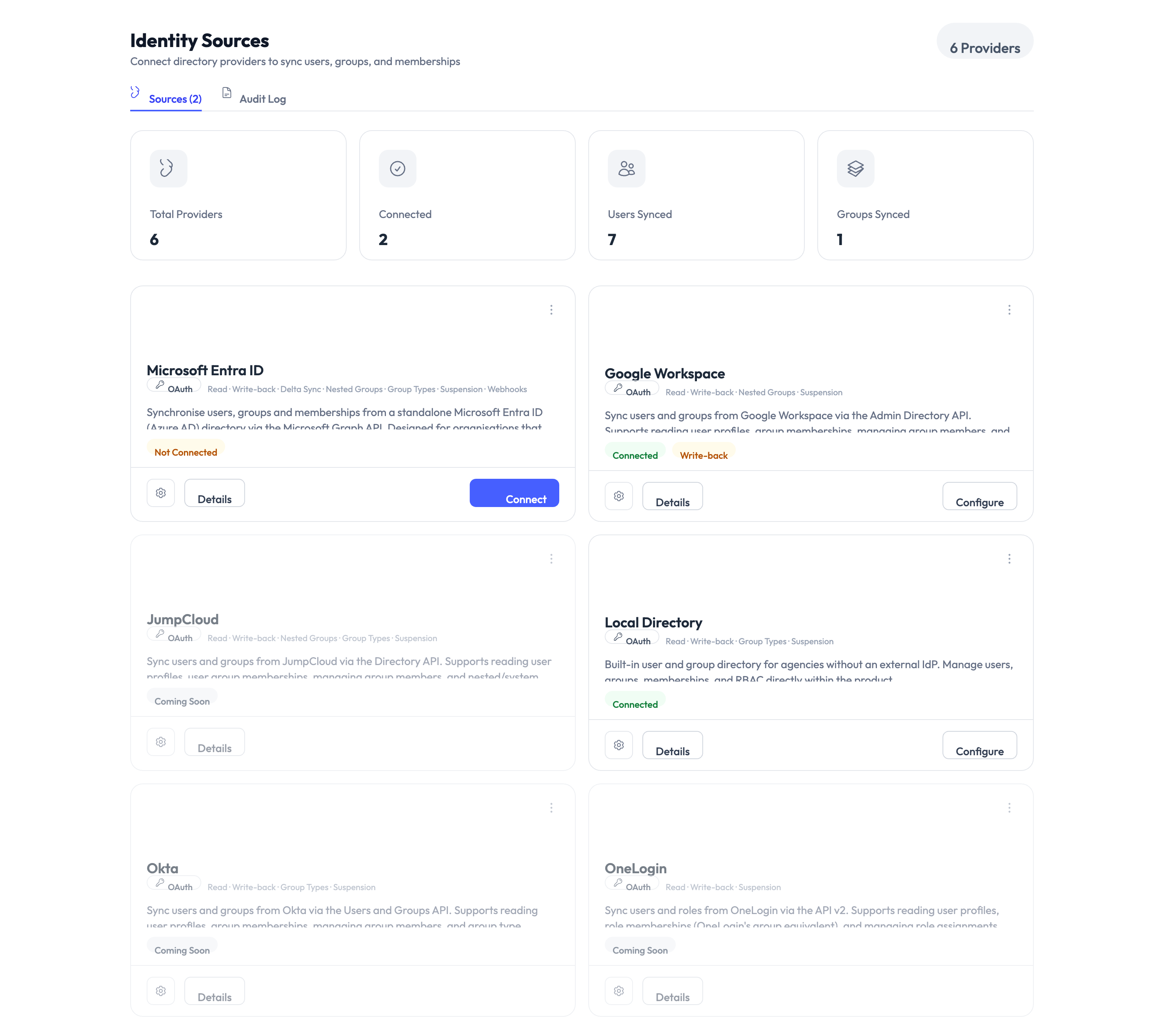
Google Workspace connection shows Degraded
Cause: The connection token temporarily failed to refresh. This is usually a short-lived issue that resolves on its own.
Resolution:
Wait a few minutes. The “Degraded” state recovers automatically when the token refreshes successfully. Only the “Disconnected” state blocks operations. If the connection stays degraded for more than 30 minutes, disconnect and reconnect.
See Google Workspace Setup for connection management.
Google Workspace provisioning fails with a permissions error
Cause: The account used to connect Google Workspace does not have the required admin permissions, or the permissions were changed after the connection was set up.
Resolution:
- Go to Settings > Identity Sources > Google Workspace.
- Check that the connected account still has super-admin permissions in your Google Workspace admin console.
- If permissions were removed, disconnect and reconnect using a super-admin account.
- Verify that the organizational unit path configured in AccessHive is accessible by the connected admin account.
See Google Workspace Setup for the full setup process.
Credential issues
Cannot reveal credentials for an identity
Cause: The identity may have been created without credentials stored, or the credential data is incomplete.
Resolution:
- Open the identity detail page and check whether credentials are listed.
- For Shared Credential (external mode): the identity must have a username and password stored. If either is missing, the identity needs to be recreated with the correct information.
- For Service Account: the identity must have an email address and key file stored.
- If credentials are missing and cannot be updated, delete the identity and create a new one with all required fields.
See Managing Credentials for how credentials work.
Credential rotation failed
Cause: The system could not update the credential on the connected platform. This can happen if the platform connection is down or the credential format has changed.
Resolution:
- Check the platform connection status in Settings > Platforms.
- Try rotating the credential again using the Rotate button on the identity detail page.
- If the rotation continues to fail, update the credential manually using the Edit Credentials option.
See Managing Credentials for rotation details.
Access request issues
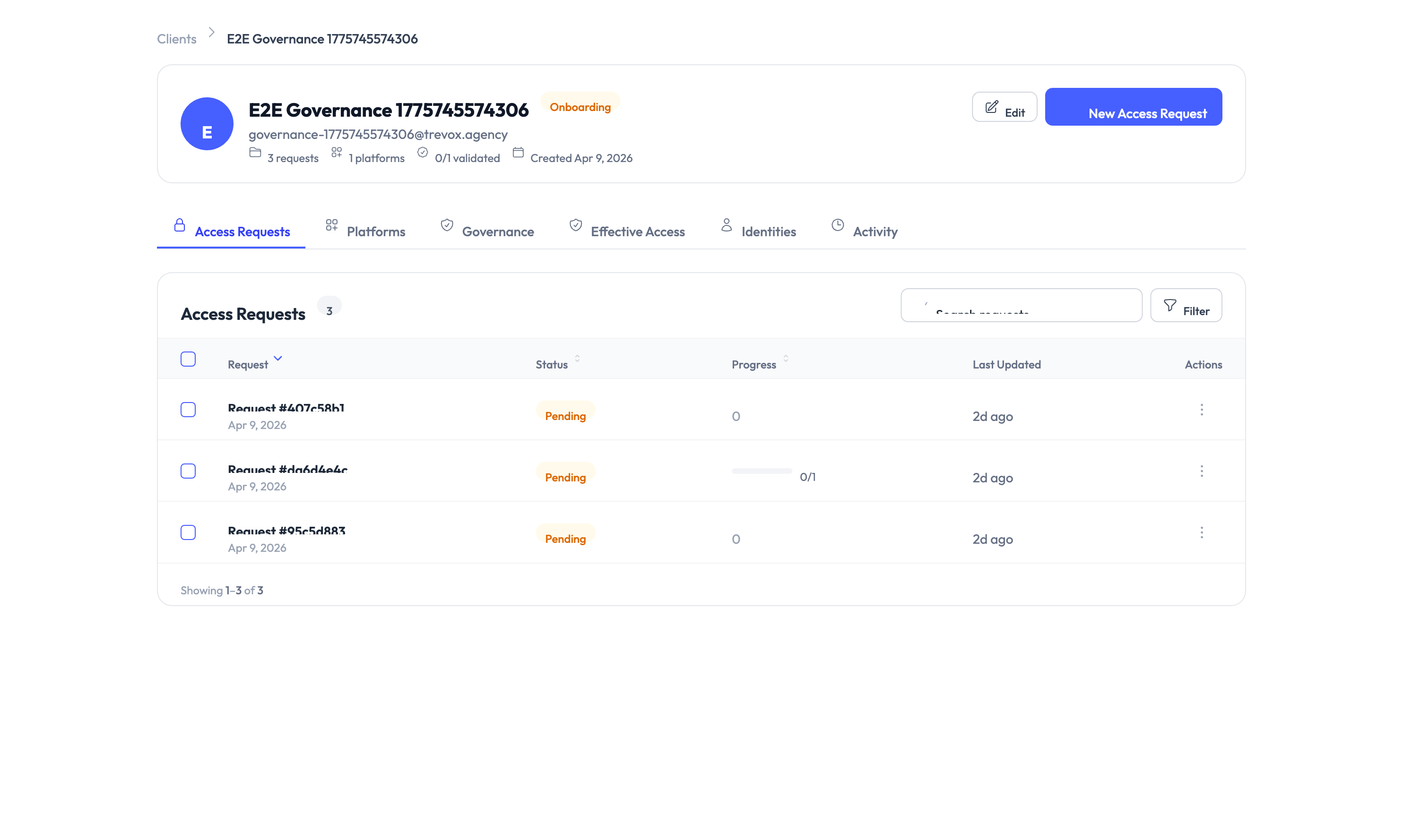
Access request has been pending for a long time
Cause: No approver has acted on the request yet. The request stays in Pending status until it is approved or denied.
Resolution:
- Check with your manager or the designated approver directly.
- If your agency has notification channels set up, verify the approver received the notification in Settings > Notifications.
- An admin can view all pending requests in the access requests dashboard.
See Access Requests for how the approval workflow operates.
Privileged Access Management session checkout failed
Cause: The identity’s credentials may have changed or become invalid since the session was approved.
Resolution:
- Ask an admin to check the identity’s credential status on the identity detail page.
- If the credentials are outdated, an admin can update them and you can retry the checkout.
- If the identity is in an error state, an admin may need to re-provision it.
See PAM Sessions for checkout and check-in instructions.
Report and audit issues
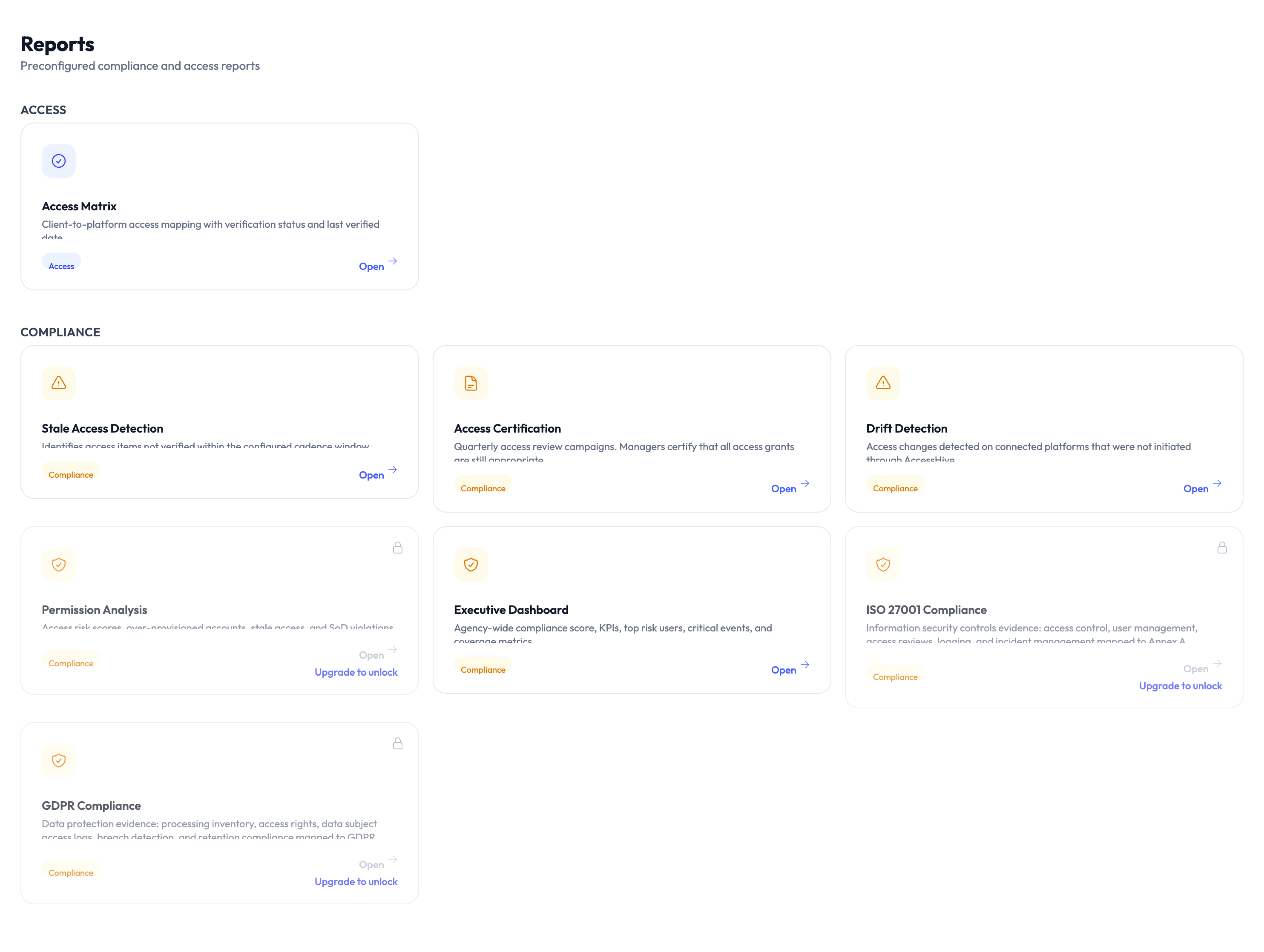
Report shows no data
Cause: The filters are too narrow, or there is no activity in the selected time period.
Resolution:
Broaden the date range or remove the client and platform filters. Try generating the report without any filters to confirm data exists.
See Reports for how to generate and filter reports.
Audit trail is missing expected events
Cause: You may have filters applied that hide the events you are looking for.
Resolution:
Clear all filters on the audit trail page and search again. If specific events are still missing, check that the action actually completed successfully — failed or cancelled actions may not generate an audit entry.
See Audit Trail for filtering and export instructions.
Notification issues
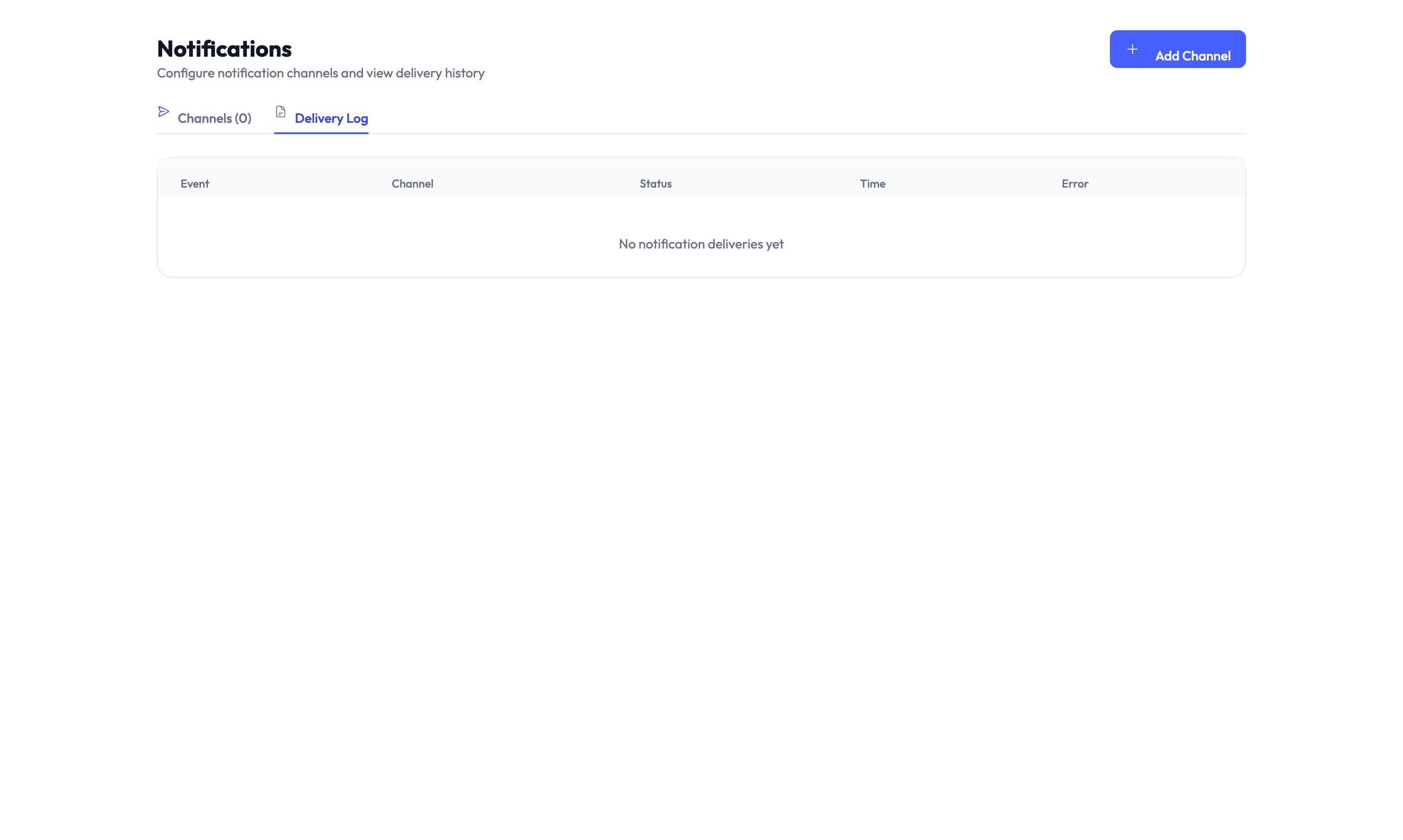
Notifications are not being delivered
Cause: The notification channel may be misconfigured, or the destination is unreachable.
Resolution:
- Go to Settings > Notifications > Channels and find the affected channel.
- Click Test to send a test notification.
- If the test fails, verify the destination (email address, webhook address, or phone number) is correct.
- For Slack and Microsoft Teams, check that the webhook is still active in your workspace settings.
See Settings for notification channel setup.
Settings issues
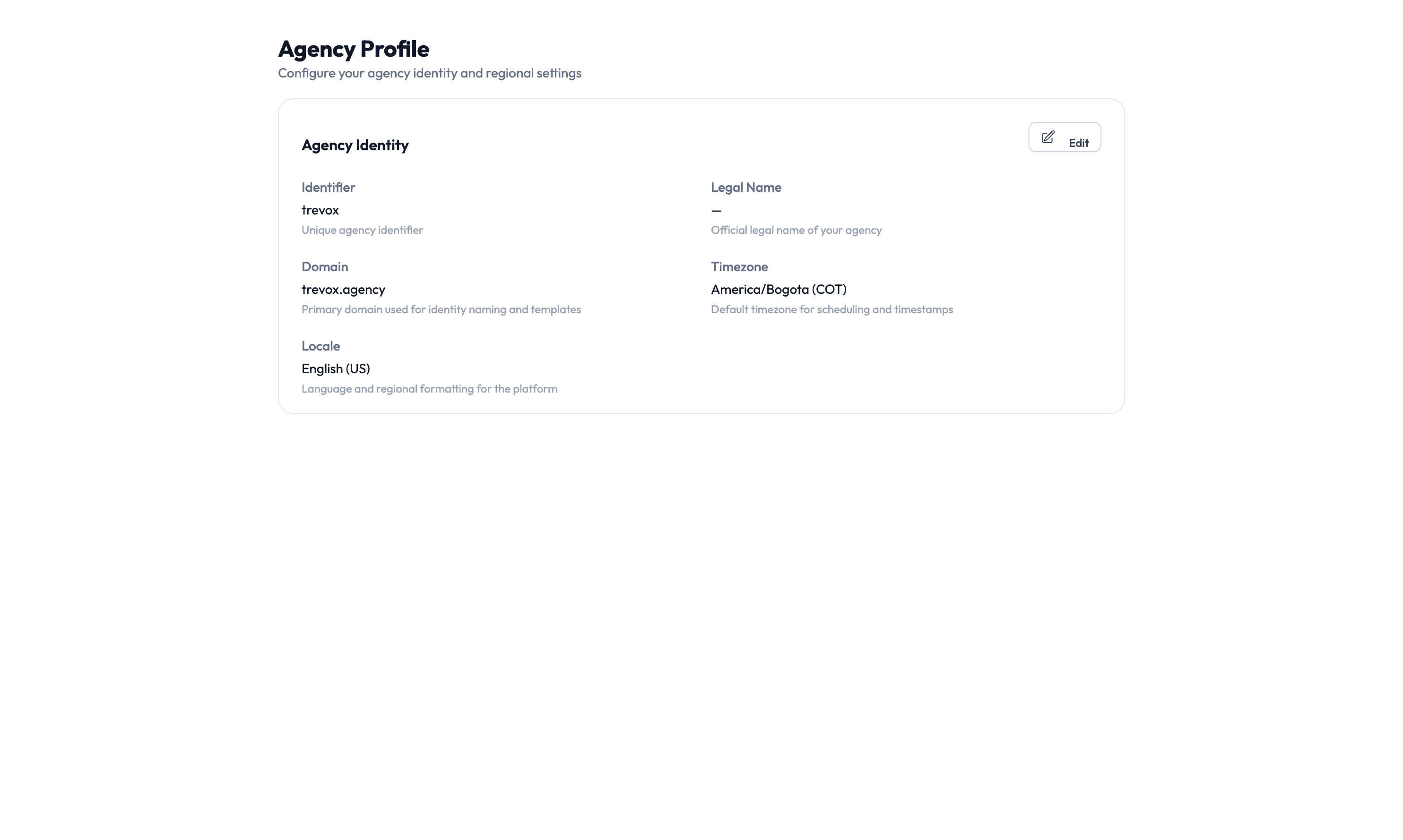
I changed a setting but it did not take effect
Cause: Some settings only apply to new records created after the change. For example, updating the default governance policy does not change existing identities.
Resolution:
Check whether the setting applies to existing records or only to new ones. For governance policies, update individual identities from their detail pages if you need the change to apply retroactively.
See Settings for details on each setting category.
I cannot access a settings page
Cause: Your role does not have permission for that section.
Resolution:
Plan and billing settings require the Owner role. Most other settings require Admin or Owner. Ask your agency owner to check your role in Settings > Users & Roles.
See Settings for the role permissions table.