PAM Sessions
This guide explains how to use Privileged Access Management (PAM) sessions in AccessHive. PAM controls how team members check out, use, and return shared credentials and service accounts – ensuring credentials are never exposed permanently.
Time to complete: About 5 minutes to read; checking out a credential takes under a minute.
- At least one Shared Credential or Service Account identity must exist. See Creating Identities.
- Governance settings must be configured on the identity (defaults are applied automatically). See Managing Credentials.
- You need an authorized team member role to check out credentials. Approvers and agency owners can manage the approval queue.
How a PAM session works
A PAM session is a time-limited window during which a team member can see and use a credential. Here is the typical flow:
- A team member requests a checkout on a Shared Credential or Service Account identity.
- If approval is required, the request goes to the approval queue.
- Once approved (or if auto-approved), the credential is decrypted and shown to the team member.
- A countdown timer starts. The team member uses the credential within the allowed window.
- The team member clicks Check In when finished, or the session expires automatically.
- For managed credentials, the system rotates the password after check-in (see Managing Credentials).
PAM checkout applies to Shared Credential and Service Account identities only. API Key and OAuth App identities do not have checkout sessions – their credentials are accessed through the reveal flow instead. See Managing Credentials.
The PAM dashboard
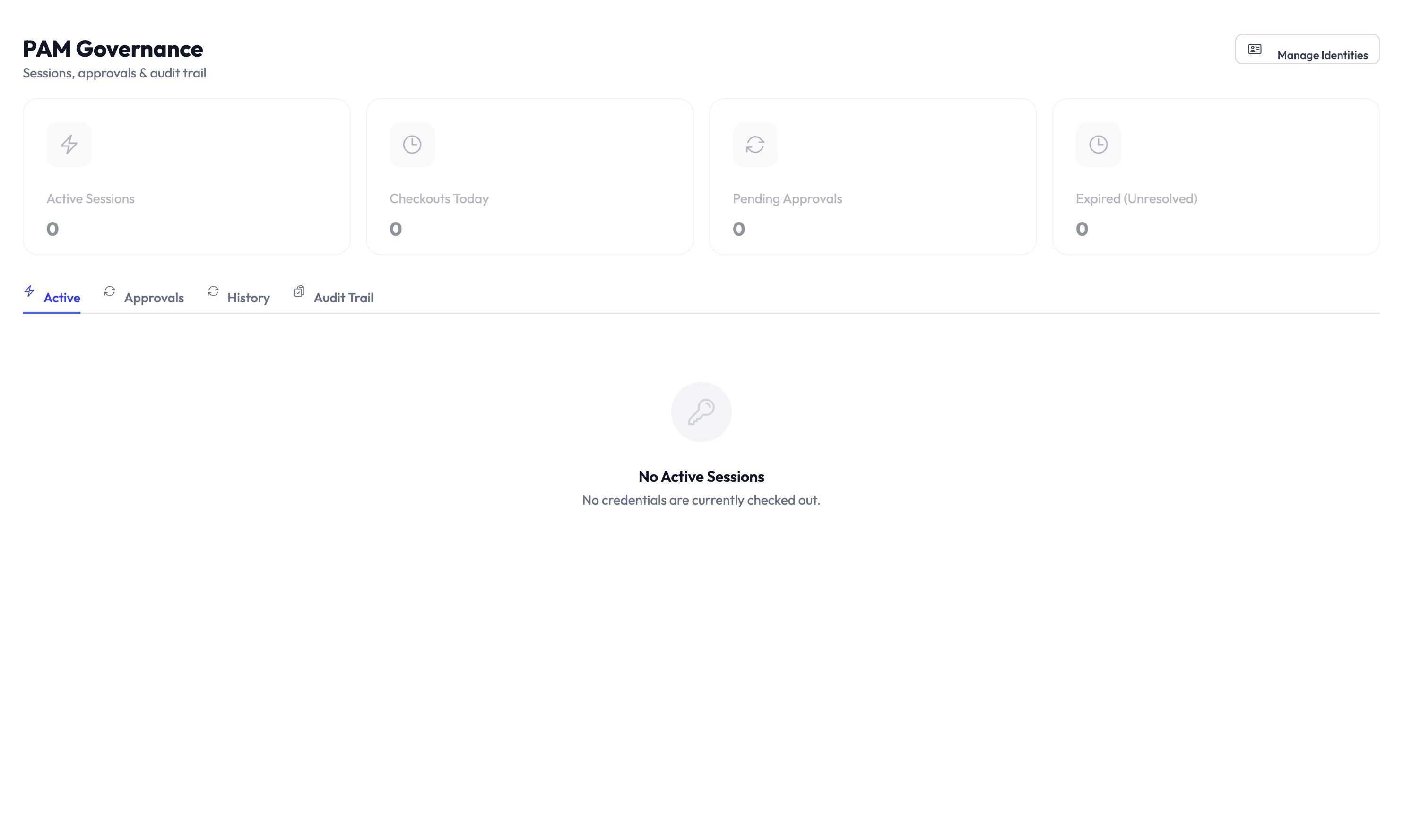
The PAM dashboard gives you a real-time view of credential activity. Navigate to PAM from the main menu.
At the top of the dashboard, three summary cards show:
- Active Sessions – Credentials currently checked out by team members.
- Pending Approvals – Checkout requests waiting for an approver to act.
- Today’s Activity – Total PAM events (checkouts, check-ins, approvals) for the day.
Below the summary cards, the Active Sessions table lists every open session:
| Column | What it shows |
|---|---|
| Session Holder | The team member who checked out the credential |
| Access Type | Identity type (Shared Credential or Service Account) |
| Platform/Target | Which platform the credential is for |
| Time Remaining | Countdown to automatic expiry |
| Started | When the session began |
| Actions | Extend or Force Terminate buttons |
Checking out a credential
Step 1 – Find the identity
Navigate to the identity detail page, or locate the identity on the PAM dashboard.
Step 2 – Click Check Out
Click Check Out on the credential you need. If the identity requires approval, your request is sent to the approver queue and you will be notified when it is approved.
Step 3 – Use the credential
Once approved (or if approval is not required), the credential is revealed and a countdown timer begins. Use the credential within the allowed checkout window.
Step 4 – Check in when finished
Click Check In when you are done, or let the session expire automatically when the timer runs out. For managed Shared Credentials, password rotation happens automatically after check-in.
Session actions
Different roles can take different actions on PAM sessions.
| Action | Who can do it | What it does |
|---|---|---|
| Check Out | Any authorized team member | Start a new PAM session and reveal the credential |
| Check In | The session holder | End the session early and trigger rotation (if managed) |
| Extend | The session holder (may require approval) | Add more time to an active session |
| Force Terminate | Agency owner or admin | Immediately end any active session |
Governance settings
Each identity has its own governance settings, configured on the identity’s Governance tab. These control how checkout sessions behave.
| Setting | Default | What it does |
|---|---|---|
| Max checkout time | 60 minutes | Maximum session duration before automatic expiry |
| Approval required | Enabled | Requires an approver to sign off before checkout |
| Confirmation required | Enabled | Requires the team member to confirm checkout intent |
These defaults come from your agency settings. You can adjust them per identity on the identity detail page.
Approving checkout requests
When approval is required, pending requests appear in the approval queue. Navigate to PAM > Pending Approvals to see them.
Each request shows:
- Who is requesting access and their justification
- Which credential and platform are involved
- A risk level indicator
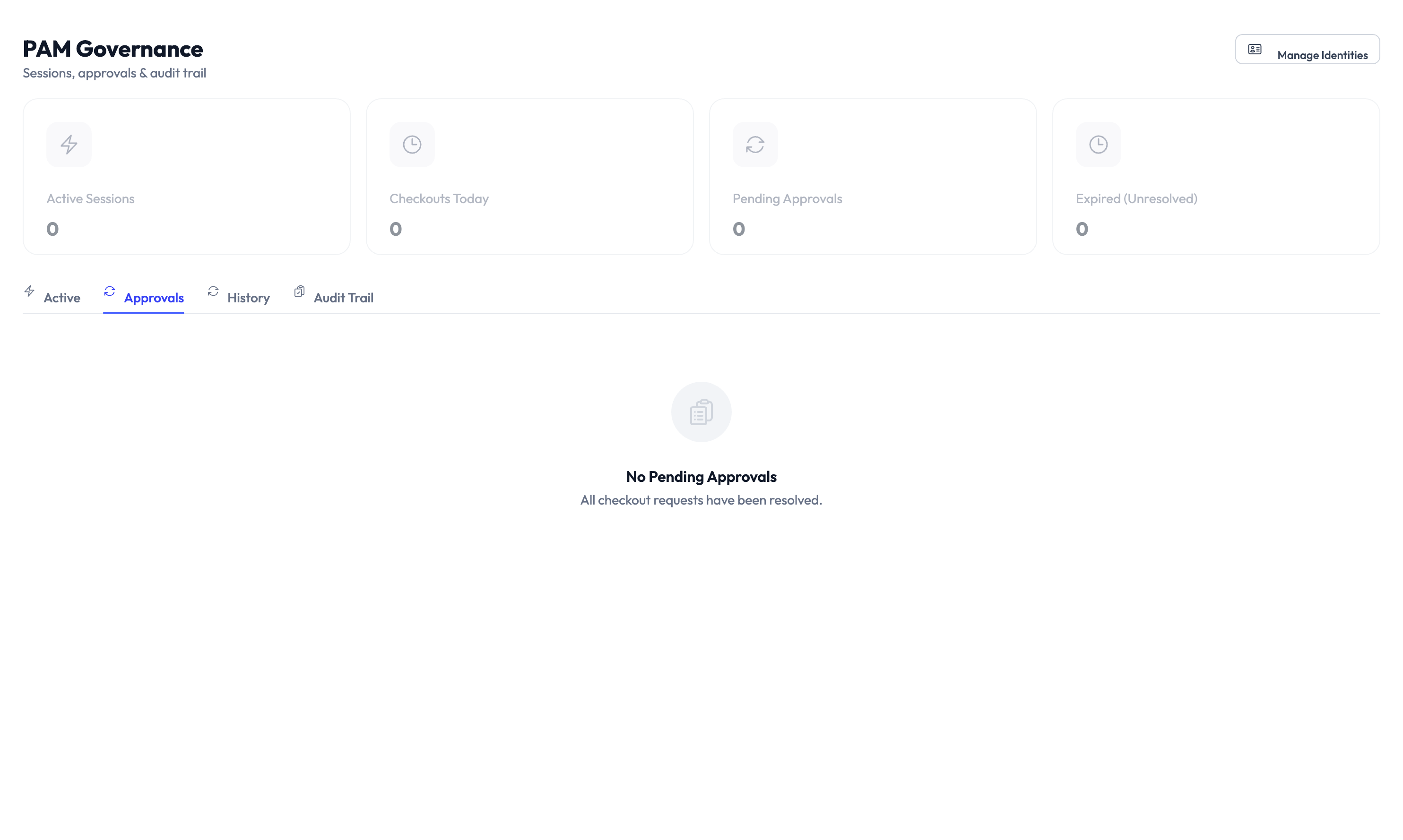
Click Approve or Deny. You can add an optional note explaining your decision. All approval decisions are recorded in the audit trail.
Session recording
When session recording is enabled, PAM captures browser activity during active checkout sessions. Recordings can be:
- Played back in the session recording viewer
- Exported for compliance reviews
- Compared side by side with other sessions
Something went wrong?
Checkout request is stuck at Pending
Your request is waiting for approver action. Check with your team’s approver or agency admin. If the request has been pending for an unusually long time, the approver may not have received the notification. See Troubleshooting.
Session expired before I finished
The max checkout time ran out. Next time, click Extend before the timer expires to request additional time (this may require approval). You can also ask your agency admin to increase the max checkout time on the identity’s Governance tab. See Troubleshooting.
Check Out button is not visible
PAM checkout is only available for Shared Credential and Service Account identities. If you are viewing an API Key or OAuth App, use the Reveal Credentials flow instead. If the identity type is correct, verify that you have an authorized role. See Troubleshooting.
Password changed after I checked in
This is expected behavior for managed Shared Credentials. The system automatically rotates the password after each check-in so that previously seen credentials no longer work. The next checkout will show the new password. See Managing Credentials.
For more troubleshooting scenarios, see the full Troubleshooting Guide.
What’s next?
- Manage credentials – Learn how to reveal, rotate, and update stored credentials. See Managing Credentials.
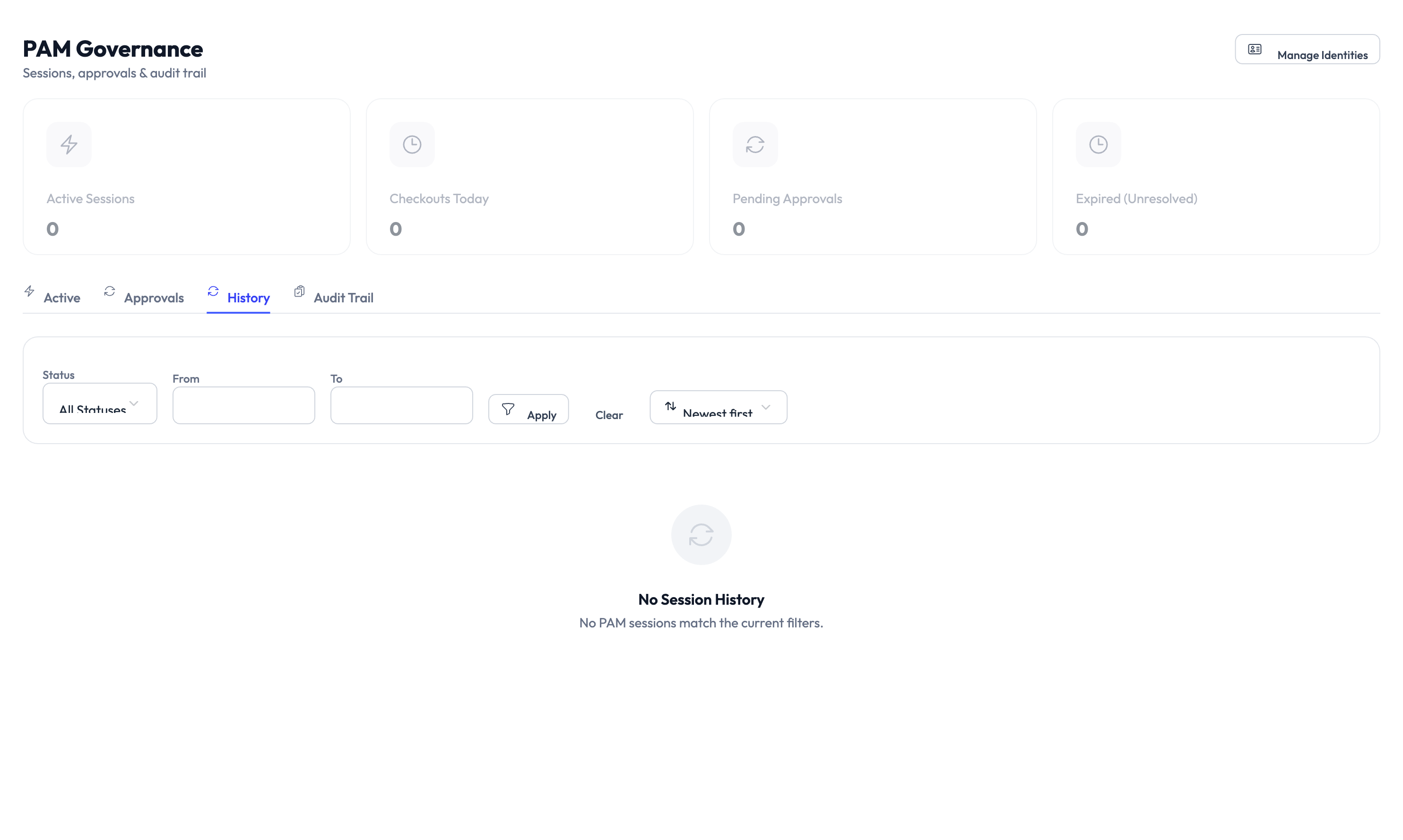
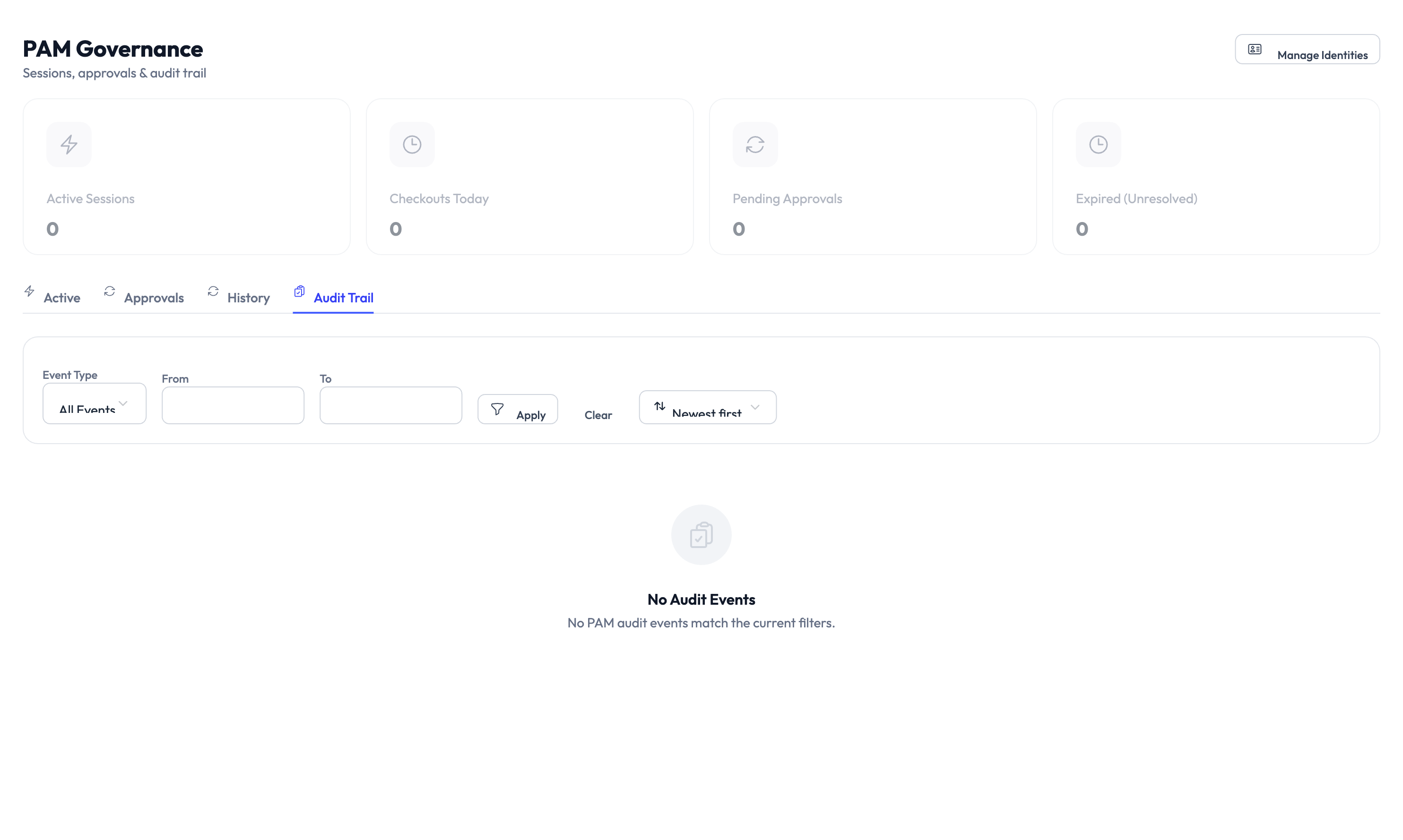
- Review the audit trail – Track checkout history, approvals, and session activity. See Audit Trail.
- Set up role templates – Define reusable access patterns for common job functions. See Role Templates.
- Handle access requests – Manage client-dedicated identity requests from the approval queue. See Access Requests.