SCIM Provisioning
This guide walks you through setting up System for Cross-domain Identity Management (SCIM) provisioning in AccessHive. SCIM connects your identity provider to AccessHive so users are automatically created, updated, and deactivated when changes happen in your directory.
Time to complete: About 5 minutes.
- You need the Admin role.
- Your identity provider must support SCIM 2.0. Supported providers include Okta, Microsoft Entra ID, OneLogin, JumpCloud, Google Workspace, and any SCIM 2.0-compliant client.
- Have access to your identity provider’s admin console to paste the SCIM endpoint and bearer token.
Navigate to Settings > SCIM to open the provisioning configuration page.
How SCIM provisioning works
When SCIM is enabled, your identity provider pushes user changes to AccessHive in real time. When you add a user in your directory, they appear in AccessHive automatically. When you deactivate a user in your directory, their AccessHive access is revoked. No manual syncing is needed.
For more on how identity sources connect to AccessHive, see Identity Sources.
Connect your identity provider
Step 1 — Copy the SCIM endpoint
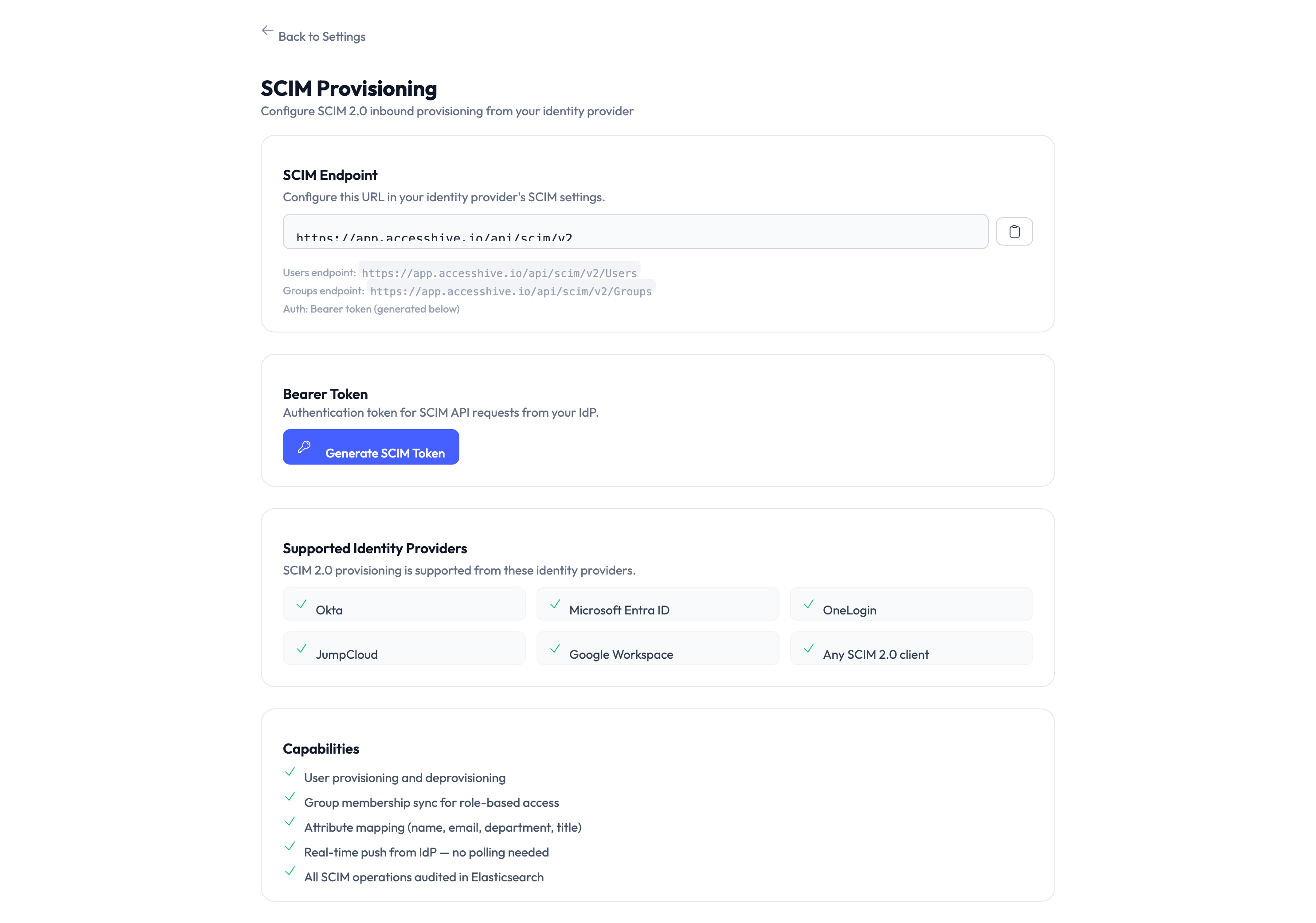
The SCIM Endpoint section shows the URL your identity provider needs. Copy the full URL and paste it into your identity provider’s SCIM configuration as the base URL or tenant URL.
Step 2 — Generate a bearer token
Click Generate SCIM Token in the Bearer Token section. The system creates a token that authenticates SCIM requests from your identity provider. Copy the token immediately – it is only shown once.
Paste this token into your identity provider’s SCIM configuration as the authorization token or secret token.
The bearer token is displayed only once when generated. If you lose it, you need to generate a new one, which invalidates the previous token and requires updating your identity provider configuration.
Step 3 — Configure your identity provider
In your identity provider’s admin console, set up a SCIM application or integration:
- Set the SCIM base URL — Paste the endpoint URL from Step 1.
- Set the authorization header — Use the bearer token from Step 2 as a Bearer token in the HTTP Authorization header.
- Enable provisioning — Turn on user provisioning (create, update, deactivate) in your provider’s SCIM settings.
- Assign users or groups — Select which users or groups should be synced to AccessHive.
Assign a test group first to verify the connection works before syncing your entire directory.
Supported identity providers
AccessHive accepts SCIM 2.0 requests from these providers:
| Provider | Notes |
|---|---|
| Okta | Full SCIM 2.0 support including group sync |
| Microsoft Entra ID | Formerly Azure Active Directory (Azure AD) |
| OneLogin | Standard SCIM 2.0 provisioning |
| JumpCloud | Cloud directory with SCIM push |
| Google Workspace | SCIM provisioning from Google Admin |
| Any SCIM 2.0 client | Any provider that supports the SCIM 2.0 standard |
Capabilities
Once connected, SCIM provisioning supports:
- User provisioning and deprovisioning — Users are created and deactivated automatically.
- Group membership sync for role-based access — Group changes in your directory update role assignments in AccessHive.
- Attribute mapping for user profile fields — Directory attributes like name, email, and department are mapped to AccessHive profiles.
- Real-time push from your identity provider — Changes are pushed instantly with no polling needed.
- All SCIM operations surface in the audit trail — Every provisioned or deprovisioned user is logged for compliance.
Something went wrong?
Users are not syncing from my identity provider
Verify the SCIM endpoint URL and bearer token are correctly configured in your provider. Check that users or groups are assigned to the SCIM application in your provider’s admin console. If the token was regenerated, update it in your provider. See Troubleshooting.
Token is invalid or expired
Bearer tokens do not expire, but generating a new token invalidates the previous one. If you regenerated the token, update the new token in your identity provider’s SCIM configuration.
Group membership changes are not reflected in AccessHive
Group sync must be enabled in your identity provider’s SCIM application settings. Not all providers push group changes by default. Check your provider’s documentation for enabling group provisioning.
Deactivated users still have access
SCIM deprovisioning disables the user account in AccessHive, but active checkout sessions may continue until they expire. Check the user’s status in Identities to confirm they are deactivated. See Troubleshooting.
What’s next?
- Configure identity sources — Connect additional identity sources beyond SCIM. See Google Workspace Setup.
- Set up role templates — Define which roles are assigned to SCIM-provisioned users. See Role Templates.
- Review the audit trail — Track provisioning and deprovisioning events. See Audit Trail.
- Connect a SIEM tool — Forward SCIM provisioning events to your security monitoring system. See SIEM Integration.