Audit Trail
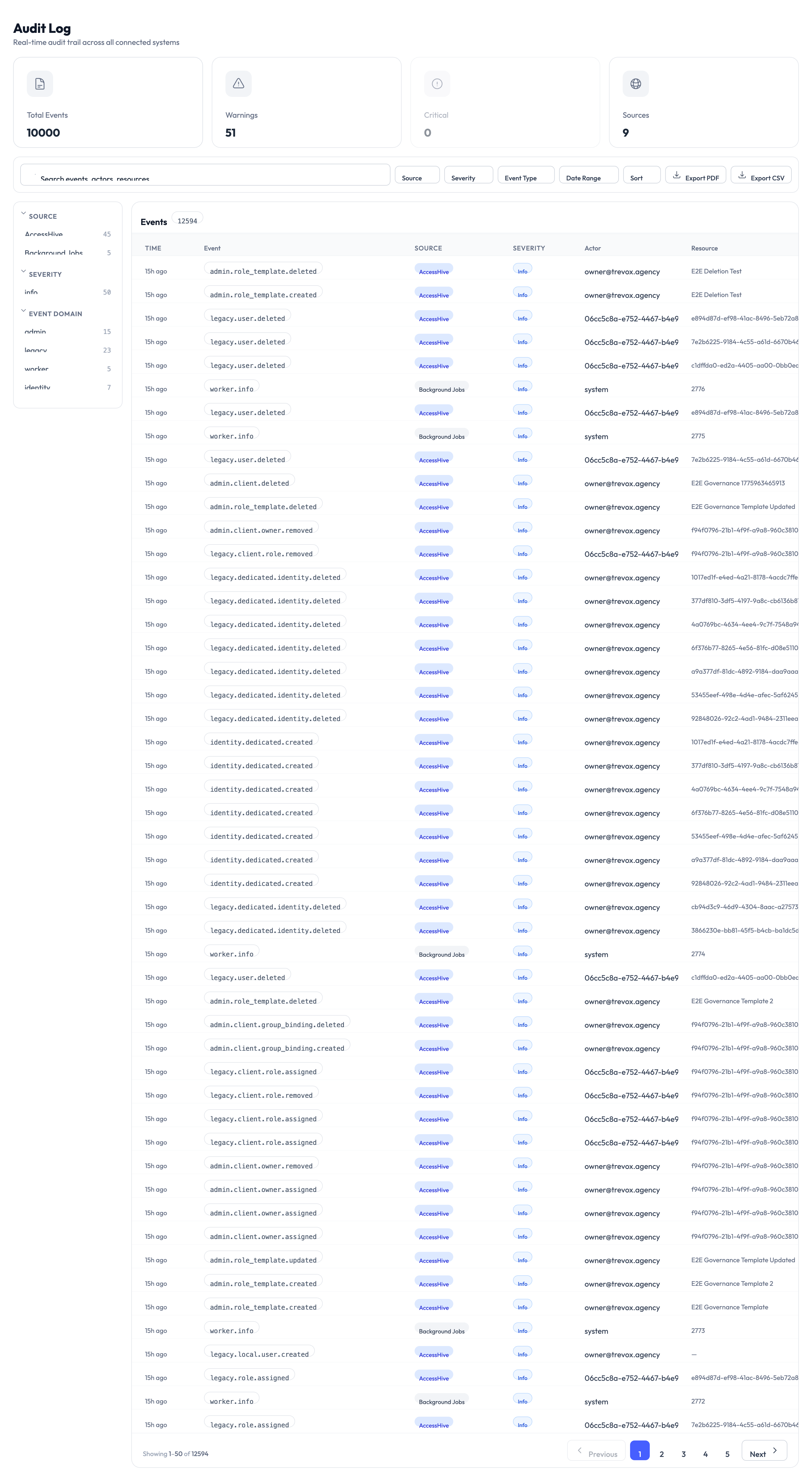
This guide shows you how to review, filter, and export the audit trail in AccessHive. The audit trail records every action taken in your agency — logins, credential reveals, policy changes, and more — so you always have a complete record of who did what and when.
Time to complete: About 3 minutes.
- You need the Admin, Owner, or Security Owner role.
- If you want to export logs, make sure your browser allows file downloads from AccessHive.
What does the audit trail record?
Every event in the audit trail includes the same set of details:
| Detail | What it tells you |
|---|---|
| Timestamp | When the event happened (shown in your timezone) |
| Actor | Who performed the action (name and email) |
| Action | What was done — for example, created, updated, deleted, or revealed |
| Resource | What was affected — for example, a client, identity, or credential |
| Details | Specific changes or context for the event |
| IP address | Where the request came from |
Event categories
The audit trail captures events across six categories:
- Authentication — Logins, logouts, Single Sign-On (SSO) authentication, multi-factor verification, and session expiry.
- Identity — Identity creation, updates, deletion, credential storage, credential reveals, credential rotation, and provisioning progress.
- Client — Client creation, updates, deletion, offboarding, team member assignments, and governance policy changes.
- Access — Access requests submitted, approved, or denied. Privileged Access Management (PAM) session checkouts, check-ins, extensions, and terminations.
- Configuration — Platform connections, identity source syncs, approval policy updates, role template changes, notification channel setup, and settings changes.
- Compliance — Report generation, audit log exports, auto-remediation actions, permission analysis runs, and drift detection.
View and filter the audit trail
Step 1 — Open the audit trail
Navigate to Settings > Audit Trail. The log displays the most recent events first.
Step 2 — Filter events
Use the filter bar at the top to narrow down results:
- Date range — Select a start and end date.
- Actor — Search by the person who performed the action.
- Action type — Filter by what was done (created, revealed, deleted, etc.).
- Resource type — Filter by what was affected (identity, client, credential, etc.).
- Keyword search — Search for specific terms in the event details.
Step 3 — Export the log
Click Export and choose a format:
- CSV — Best for spreadsheet analysis and sharing with auditors.
- JSON — Best for importing into external security or compliance tools.
The export includes all events matching your current filters.
Verify log integrity
AccessHive protects audit entries from tampering. Each entry includes a cryptographic hash linked to the previous entry, forming a verification chain.
To run an integrity check, click the Verify Chain button at the top of the audit trail page. The system confirms whether all entries are intact and unmodified.
Audit entries cannot be modified or deleted by anyone, including agency owners. This supports compliance with SOC 2 and ISO 27001 requirements for tamper-proof logging.
Something went wrong?
I cannot see the audit trail page
You may not have the required role. The audit trail is available to users with the Admin, Owner, or Security Owner role. Ask your agency owner to check your role assignment in Settings > Users & Roles. See Troubleshooting.
Exported file is empty or missing events
Check your filters. If you have a narrow date range or specific action type selected, the export only includes matching events. Clear all filters and try the export again. See Troubleshooting.
Chain verification shows a warning
This means the system detected a gap or inconsistency in the log chain. Contact your AccessHive support representative — this requires investigation. See Troubleshooting.
For more troubleshooting scenarios, see the full Troubleshooting Guide.
What’s next?
- Generate compliance reports — Use audit data to build SOC 2, ISO 27001, and GDPR reports. See Reports.
- Configure notifications — Get alerts when specific audit events occur. See Settings.
- Review access requests — Track who requested and approved access to credentials. See Access Requests.
- Manage credentials — See how credential reveals and rotations appear in the audit trail. See Managing Credentials.