Google Workspace Setup
This guide walks you through connecting Google Workspace (GWS) as an identity source in AccessHive. Once connected, the system can automatically create and manage domain user accounts for your team’s platform credentials.
Time to complete: About 10 minutes.
- You need a Google Workspace super-admin account.
- The Admin SDK must be enabled in your Google Cloud Console. Go to APIs & Services > Library and search for “Admin SDK API”.
- Directory access must be enabled for the Admin SDK.
- You need the Admin role in AccessHive.
Connecting Google Workspace
Step 1 – Open identity source settings
Navigate to Settings > Identity Sources > Google Workspace.
Step 2 – Start the connection
Click Connect to begin the authorization flow. You are redirected to Google’s sign-in page.
Step 3 – Sign in and authorize
Sign in with your Google Workspace super-admin account. Grant the requested permissions for the Admin SDK Directory – this allows AccessHive to manage users and organizational units in your domain.
Step 4 – Verify the connection
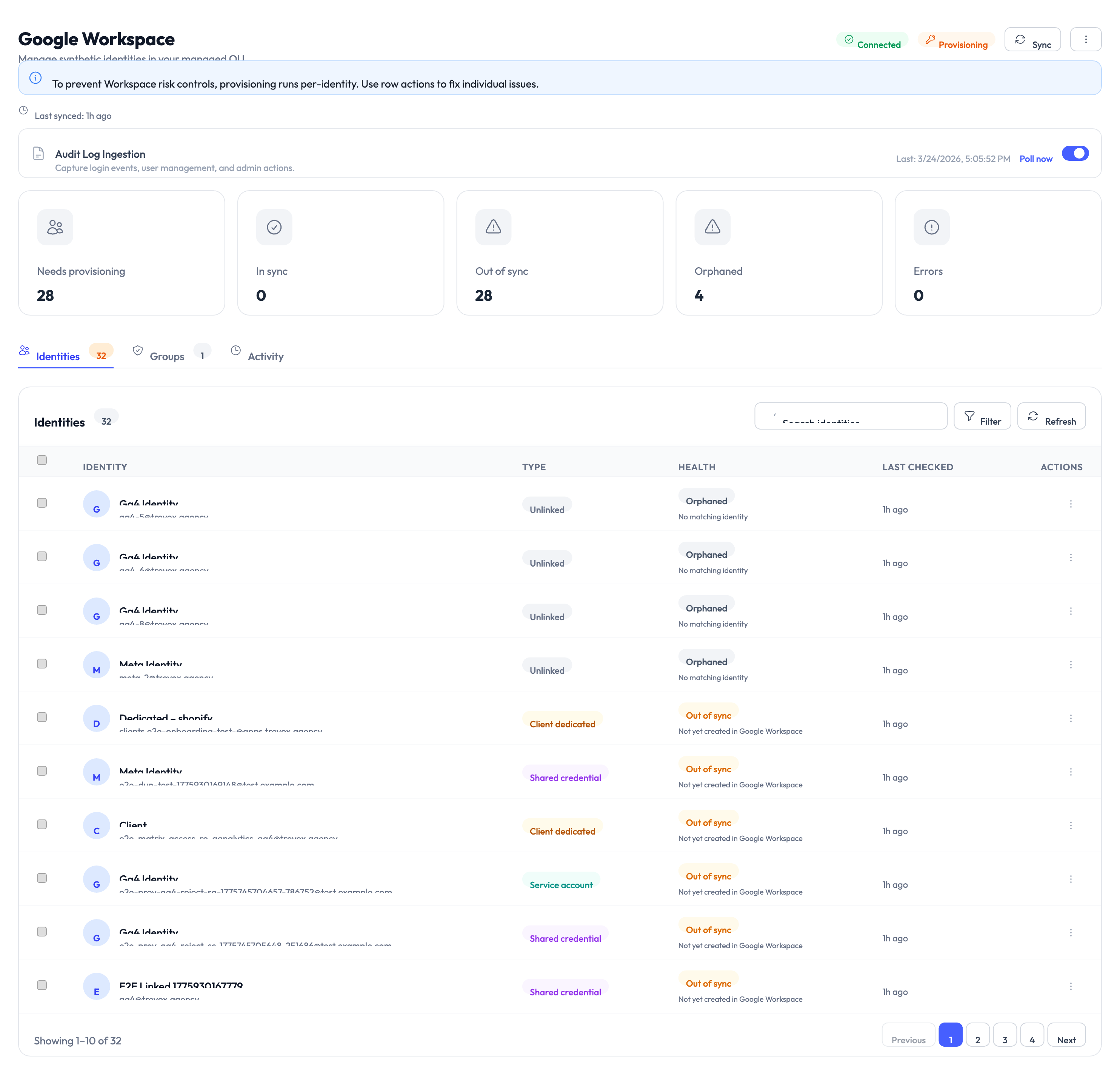
Once authorized, the connection status shows Connected with mode set to Provisioning. This means AccessHive can now create and manage domain users automatically.
Understanding connection states
The Google Workspace connection can be in one of three states:
| State | What it means | What you should do |
|---|---|---|
| Connected | Authorization is active and the token is valid | Nothing – all operations work normally |
| Degraded | The token refresh is temporarily failing | Wait – this state auto-recovers when the token refreshes successfully |
| Disconnected | Authorization was explicitly revoked | Reconnect by completing the authorization flow again |
A Degraded state is temporary and resolves on its own. Do not take manual action unless the state persists for more than 30 minutes. Only a Disconnected state (where authorization was explicitly revoked) blocks provisioning operations.
How provisioning works
When Google Workspace is in Provisioning mode and you create a managed Shared Credential or a Human Interactive identity, the system automatically:
- Creates a new user in your Google Workspace domain (e.g.,
meta@youragency.com). - Places the user in the managed organizational unit (OU) you configured.
- Sets the password and stores it securely in the credential vault (see Credential Vault).
- Marks the identity as Provisioned once complete.
This process takes 5-15 seconds.
Only Shared Credential (managed mode) and Human Interactive identities trigger Google Workspace user creation. Service Account, API Key, and OAuth App identities carry their own authentication and do not create domain users.
Configuring the managed organizational unit
Google Workspace identities are placed in a dedicated organizational unit (OU) to keep provisioned accounts separate from your regular workspace users. This separation enables OU-based policy enforcement.
To set the managed OU path:
- Go to Settings > Identity Sources > Google Workspace > Managed OU.
- Enter or select the OU path where provisioned users should be created.
- Save the configuration.
All new provisioned domain users are created under this path.
If you change the managed OU, run a sync to reclassify existing identities. Users in the old OU show as misplaced until they are moved or the configuration is updated.
Sync and reconciliation
The sync process compares your Google Workspace directory with AccessHive’s identity records. Each identity is classified into one of these statuses:
| Status | What it means |
|---|---|
| Linked | Identity matches a Google Workspace user in the correct OU |
| Linked (suspended) | The Google Workspace user account is suspended |
| Missing in Google | Identity exists in AccessHive but the corresponding user was not found in Google Workspace |
| Wrong OU | The Google Workspace user exists but is in the wrong organizational unit |
| Orphan in Google | A Google Workspace user exists with no matching identity in AccessHive |
To run a sync, go to Settings > Identity Sources > Google Workspace and click Sync Now. The results appear in the sync report.
Something went wrong?
Connection fails during the authorization flow
Make sure you are signing in with a super-admin account. Standard admin accounts do not have the permissions needed for user management. Also verify that the Admin SDK is enabled in your Google Cloud Console under APIs & Services > Library. See Troubleshooting.
Connection is stuck in Degraded state for more than 30 minutes
Try disconnecting and reconnecting. Go to Settings > Identity Sources > Google Workspace, click Disconnect, then reconnect using the authorization flow. This refreshes the token. See Troubleshooting.
Provisioned user is in the wrong organizational unit
Run a sync to identify misplaced users. Then either move the user to the correct OU in your Google Workspace admin console, or update the managed OU path in AccessHive if it has changed. See Troubleshooting.
Sync shows orphan users in Google Workspace
Orphan users exist in Google Workspace but have no matching identity in AccessHive. This can happen if an identity was deleted in AccessHive without removing the corresponding Google Workspace user. Review the orphan list and decide whether to create matching identities or remove the users from Google Workspace. See Troubleshooting.
What’s next?
- Create managed identities – Set up Shared Credential identities in managed mode so the system provisions domain users automatically. See Creating Identities.
- Manage credentials – Learn how to reveal, rotate, and audit credentials for provisioned identities. See Managing Credentials.
- Understand identity types – Learn which identity types use Google Workspace provisioning and which do not. See Identity Types.
- Connect platforms – Add the marketing platforms your managed identities will access. See Platform Connections.